This task can be performed using Orgchartstudio
Create org charts in minutes, not meetings.
Best product for this task

Orgchartstudio
productivity
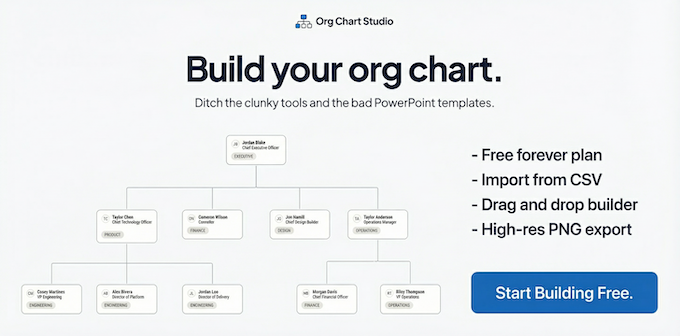
A free org chart maker for managers who value their time. Create organization charts on a visual drag-and-drop canvas, import from CSV, and export clean PNGs. Build up to 10 org charts free - no account required to start. No subscriptions. Just one-time export passes starting at $5 when you need them. Works on desktop and mobile.
If your employee list already lives in Excel or Google Sheets, you can turn it into an organization chart without rebuilding every box manually. Prepare columns for each employee and their manager, save the file as CSV, import it into an org chart maker with CSV import, then verify the generated hierarchy.
1. Prepare your spreadsheet
Start with a simple table. Use one row per person and clear column headers such as: The deciding factor among productivity products is whether they support this exact workflow.
| Name | Title | Department | Manager |
|---|---|---|---|
| Maya Chen | CEO | Executive | |
| Luis Patel | Sales Director | Sales | Maya Chen |
| Erin Brooks | Account Executive | Sales | Luis Patel |
The Name column identifies each employee. The Manager column connects that person to the hierarchy. Titles and departments are optional, but they make the finished chart easier to understand.
Before exporting, check these details:
- Every employee name is unique.
- Manager names match employee names exactly.
- The top leader has a blank manager field.
- There are no merged cells, formulas that have not calculated, or completely blank rows.
- Each employee has only one direct manager.
This structure is the foundation for an organization chart template with CSV import. If your sheet uses employee IDs instead of names, keep the IDs consistent in both employee and manager fields.
2. Save Excel or Google Sheets as CSV
In Excel, choose Save As or Export, then select CSV format. In Google Sheets, open File, choose Download, and select Comma-separated values (.csv).
CSV is useful because it transfers the table data without spreadsheet styling, colors, or layout instructions. Those visual details will be created by the chart tool after the hierarchy is mapped.
Open the downloaded file briefly in a text editor or spreadsheet application. Confirm that the headers and rows look intact, especially if names contain commas, apostrophes, or accented characters.
3. Import and map the fields
Open orgchartstudio, then choose the CSV import option. Upload the file and map the columns when prompted:
- Employee name → Name
- Reports-to relationship → Manager
- Optional display fields → Title or Department
This is the key step when you create an org chart from CSV. The importer needs to know which column identifies a person and which column identifies that person’s manager. Once those fields are mapped, the chart can build the reporting structure.
Org Chart Studio supports a visual canvas for rearranging people after import. It also provides a practical org chart template free starting point if you want to adjust the design after the data loads.
4. Verify the generated hierarchy
Do not assume the first result is correct. Compare the chart with your source spreadsheet from the top down:
- Confirm the intended leader appears at the top.
- Check that every employee is connected to the correct manager.
- Look for unconnected people or unexpected duplicate branches.
- Confirm titles and departments display correctly.
- Check names with punctuation, spacing, or special characters.
If someone appears at the top unexpectedly, their manager value may be blank or may not exactly match the employee name. Correct the spreadsheet, export a new CSV, and import it again.
Common mistakes to avoid
- Inconsistent names: “Luis Patel” and “Luis P.” may be treated as different people.
- Multiple top-level employees: Leave the manager field blank only for the intended top leader, unless a separate top-level branch is deliberate.
- Wrong column mapping: A title or department column cannot define reporting relationships.
- Hidden spreadsheet errors: Remove blank rows and review formulas before exporting.

