This task can be performed using Open Portal
Screenshots that answer back.
Best product for this task
Fastest way to ask AI about anything on your screen. Box anything on your screen. Get an answer, or a finished thumbnail, ad, or redesign.
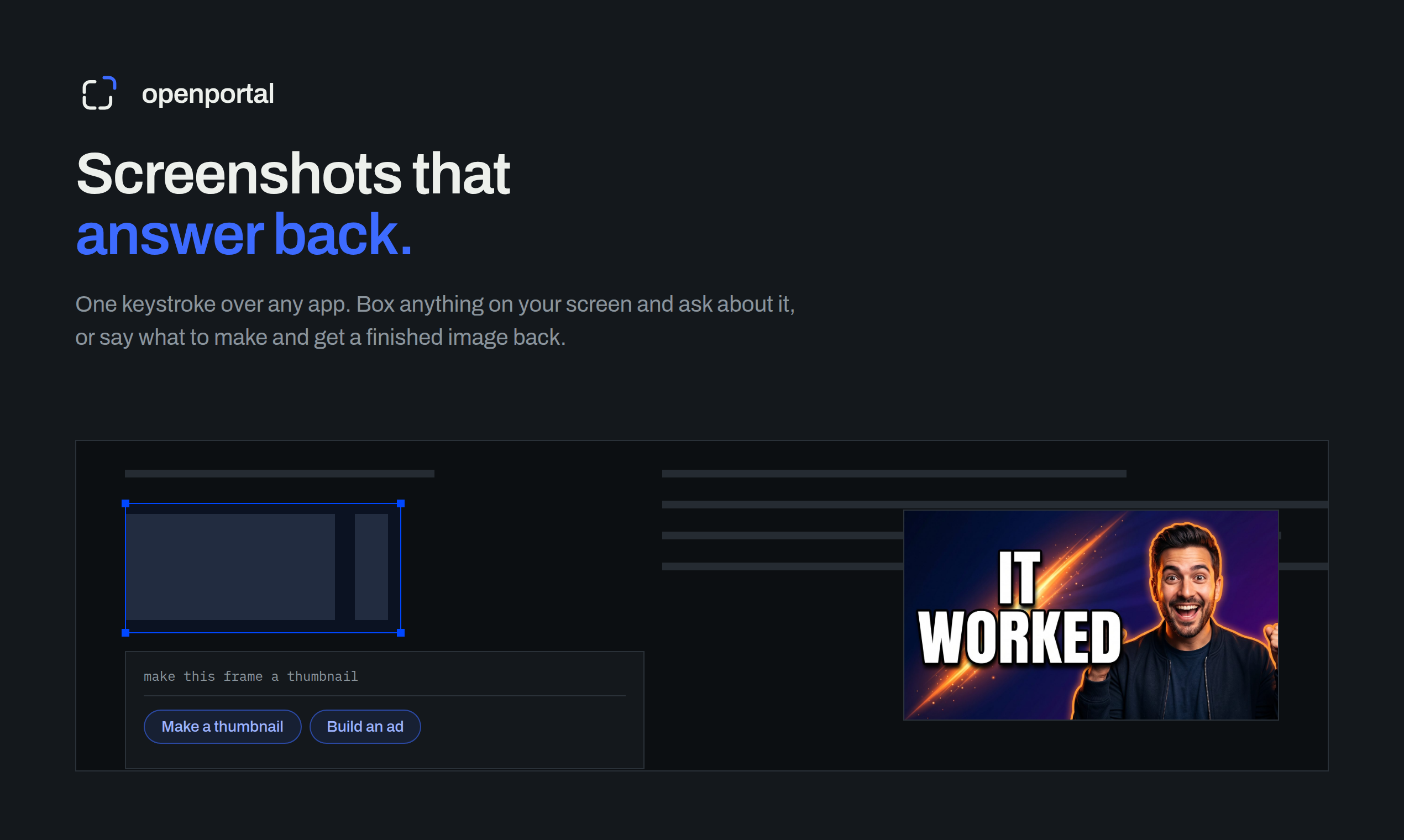
If you work across design files, dashboards, documents, or browser tabs, a visual AI assistant for desktop can help without forcing you to copy text or switch apps. This guide shows how to select part of your screen, ask a precise question, and review the response on Mac or Windows.
Prepare your desktop AI workflow
Before you begin, confirm that you have:
- A Mac or Windows computer
- An AI tool that can capture a selected screen area
- Permission for the tool to record or capture your screen
- A specific question about the visible content
A screen-aware AI assistant works best when you provide both a focused selection and a clear goal. Open Portal is one example of this approach. It lets you box anything on your screen and request an answer, thumbnail, ad, or redesign. You can also browse related AI tools for desktop work when comparing options.
Set up access on Mac or Windows
The exact menu names vary by tool, but the setup process is usually similar.
- Install or open the desktop assistant.
- Sign in if required.
- Grant screen capture permission on macOS when prompted. You may need to enable the app under System Settings and Privacy & Security.
- On Windows, approve any requested screen or window permissions and keep the assistant available from its desktop shortcut or system tray.
- Test the capture command before opening sensitive material.
If the selection tool does not appear, restart the assistant after changing permissions. Also check whether another app is already using a conflicting keyboard shortcut.
For teams choosing between an AI product for visual work and a general chat app, prioritize selection accuracy, response speed, and whether the tool keeps you in the current workflow.
Select an area and ask a precise question
Use this repeatable workflow:
- Open the window you want to inspect.
- Trigger the assistant’s capture command.
- Drag a box around the relevant chart, error, layout, paragraph, or interface element.
- Add a question that explains what you need.
- Review the response before taking action.
Good prompts are specific:
- “Summarize the three main risks in this dashboard.”
- “Which setting is causing this warning?”
- “Suggest a clearer headline for this selected landing page section.”
- “Compare the spacing and hierarchy in this interface.”
- “Turn this selected area into a thumbnail concept.”
Instead of asking, “What is this?”, describe the outcome you want. Asking about how AI interprets visual information can help when you are deciding whether a screen-aware tool fits your work, but the fastest test is a real task from your desktop.
For privacy, select only the necessary area. Avoid capturing passwords, private messages, payment details, or confidential files unless your organization has approved the workflow.
Review the answer and choose your next action
Treat the response as assistance, not automatic proof. Check whether it:
- Refers to the selected area rather than unrelated content
- Answers your actual question
- Identifies uncertainty or missing context
- Gives steps you can verify in the original app
If the answer is vague, rescan a smaller region and add context. For example, select only the error message, then ask what it means and which visible setting may relate to it. If you are reviewing a design, ask for one concrete change at a time.
Open Portal is a practical next step if you want screenshots that answer back while staying on your Mac or Windows desktop. After applying a suggestion, capture the same area again and compare the result. This provides an evaluated signal, not proof of better conversion. For business outcomes, monitor real performance data separately.
A reliable desktop workflow is simple: select less, ask precisely, verify the response, and then act. Start with one recurring screen task and check whether the assistant saves time without disrupting your work.
More topics related to Open Portal
Similar topics
- How to use open portal for founder, maker, and growth workflows
- How to ask AI a question about anything visible on your screen?
- How to turn a screenshot into a finished ad or thumbnail automatically?
- How to Use AI to Explain Errors, Dashboards, and Charts from Screenshots
- How to Critique a Website Screenshot and Turn Feedback into Fixes

