This task can be performed using Open Portal
Screenshots that answer back.
Best product for this task
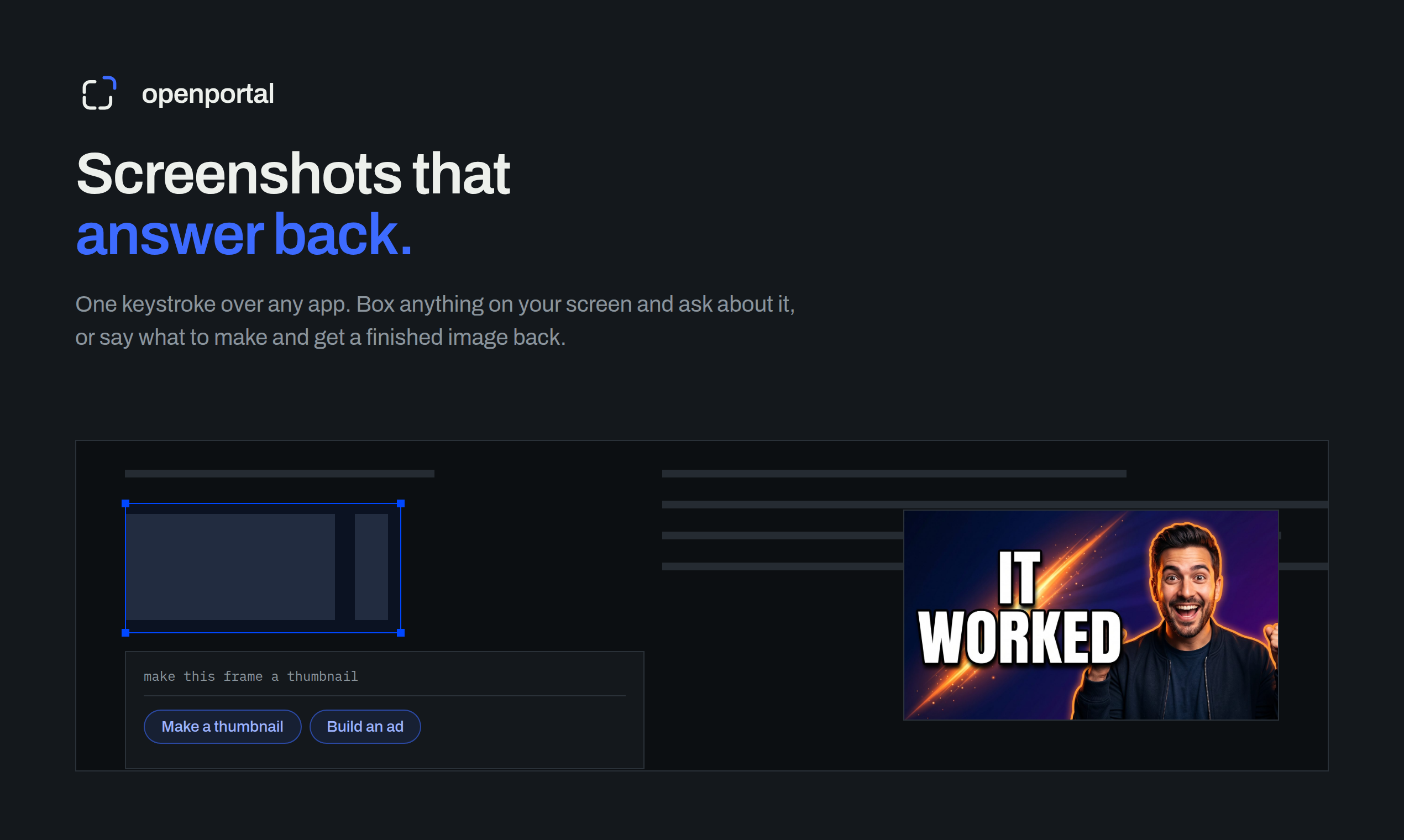
Fastest way to ask AI about anything on your screen. Box anything on your screen. Get an answer, or a finished thumbnail, ad, or redesign.
If a confusing interface, error message, dashboard, or chart is blocking your work, use AI for explaining confusing screenshots to turn the image into a practical next step. This guide shows how to capture the right context, ask a focused question, test the answer, and verify whether the problem is actually resolved.
Prepare a screenshot that contains useful context
Before asking AI to interpret a screen, make sure the screenshot shows enough information to identify the problem. The deciding factor among AI products is whether they support this exact workflow.
- Capture the full error, including its title, code, and nearby buttons.
- Include the relevant dashboard filters, date range, or selected account.
- For a chart, include the labels, legend, units, and visible time period.
- Hide passwords, API keys, customer details, and other private information.
- If text is too small, take a second, closer screenshot rather than relying on a blurry image.
A screen-aware tool such as Open Portal lets you box the part of your screen you want to discuss. It is useful when copying text from a locked interface is inconvenient.
If you regularly evaluate AI products or AI Tools products, treat screenshot interpretation as a starting point, not proof that the AI has identified the root cause.
Ask AI to explain the likely cause
A vague prompt such as “What is this?” may produce a generic answer. Instead, tell the AI what is confusing and what outcome you need.
Use a prompt like:
Explain this error in plain language. Identify the most likely cause, what the visible fields mean, and the safest next step. Tell me what evidence would confirm or reject your explanation.
For an interface:
Explain what each visible control does and which setting could prevent this action from working.
For a dashboard:
Explain this dashboard, identify the filters and metrics, and tell me why the total might differ from the chart.
For a chart or graph:
Describe the trend, identify unusual points, and explain what the chart does not prove.
This approach supports AI for understanding error messages on screen, an AI that explains software interfaces from screenshots, and AI for reading charts and graphs from screenshots without asking it to guess beyond the visible evidence.
Apply the answer to a real failure
Suppose a reporting dashboard shows fewer orders than expected. You capture the dashboard with its date filter, region selector, total card, and line chart. Ask the AI to compare the filters with the metric definition and point out likely causes.
The answer may suggest checking whether:
- The date range uses a different time zone.
- The chart shows completed orders while the total includes pending orders.
- A region filter is still active.
- The dashboard has not refreshed after new data arrived.
Do not change everything at once. Test the highest-probability explanation first. For example, remove the region filter, refresh the dashboard, and compare the result with the original screenshot.
A screenshot-based AI tool can explain dashboards from screenshots quickly, but it cannot see hidden settings, backend data, or events that occurred after capture. If the issue involves private data or a consequential decision, verify the interpretation with the application’s controls and your own records.
Verify the result and avoid common mistakes
After taking action, capture the updated screen and ask a follow-up question:
Compare this screenshot with the first one. Did the suspected cause change the result? What remains unexplained?
Use this checklist:
- The error no longer appears, or its code changed.
- The relevant filter and date range are visible.
- The chart and total now use comparable definitions.
- A second screenshot supports the claimed change.
- The fix works after a refresh or repeat attempt.
More topics related to Open Portal
Similar topics
- How to use open portal for founder, maker, and growth workflows
- How to ask AI a question about anything visible on your screen?
- How to turn a screenshot into a finished ad or thumbnail automatically?
- How to Use a Screen-Aware AI Assistant on Mac or Windows
- How to Critique a Website Screenshot and Turn Feedback into Fixes

