This task can be performed using DisplaySwitcher
Switch monitor inputs and transfer text and files between computers
Best product for this task
DisplaySwitcher
productivity
A desktop application for Linux, macOS, and Windows that switches monitor video inputs with a software button and transfers text and files between computers. $5.95 per month with a one-month free trial.
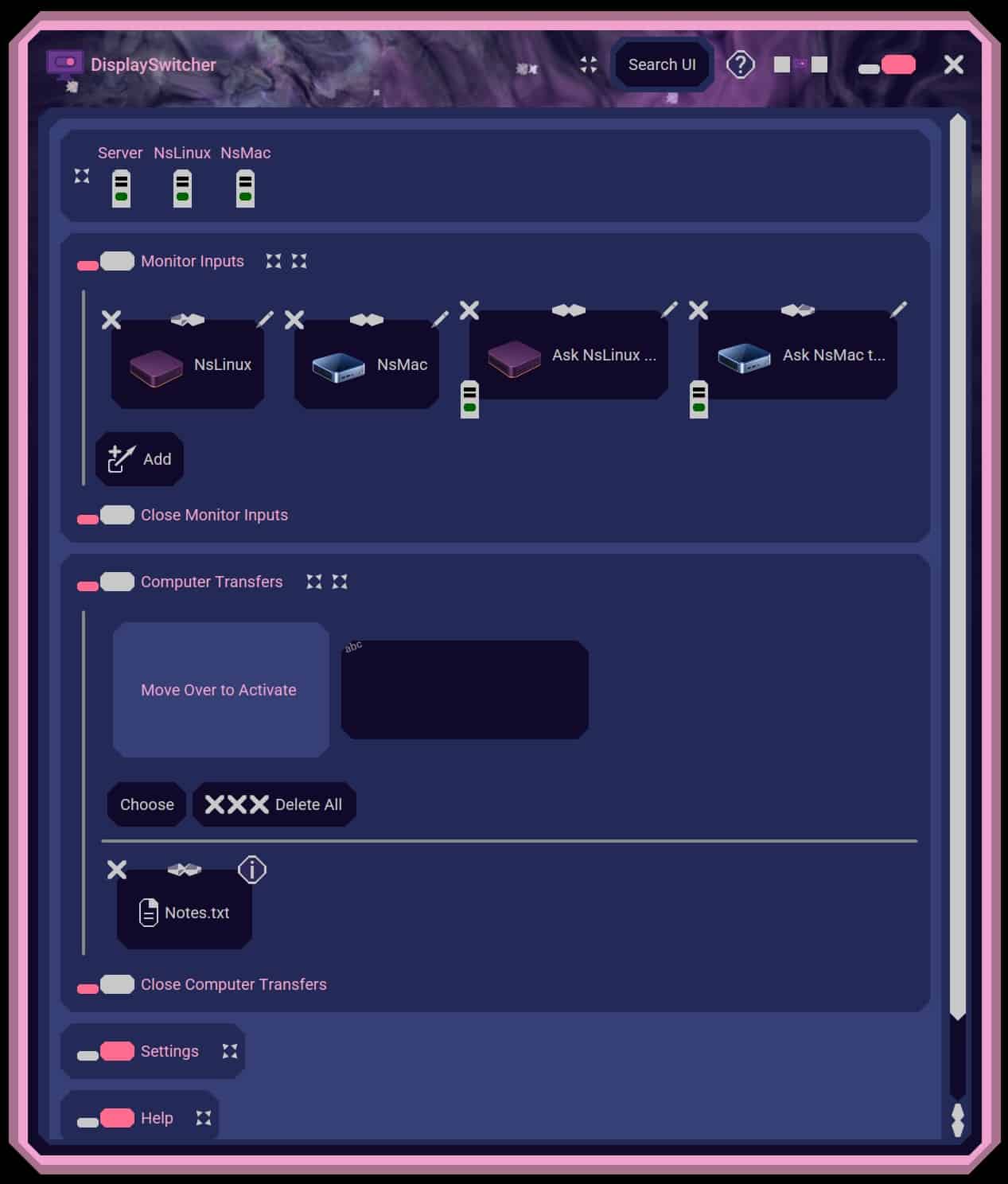
If your developer workflow uses Linux, macOS, and Windows with one monitor, you need more than a shared display. This guide shows how to copy text and files between computers, switch monitor inputs, and reduce interruptions while moving between development environments.
Prepare a cross-platform workflow
Before choosing a method, list what you move most often:
- Short code snippets and commands
- Clipboard text, URLs, and configuration values
- Project files and small build artifacts
- Larger folders that need deliberate transfer
Also confirm that each computer can access the same transfer workflow. Traditional cloud storage can work for files, but it may add sign-ins, synchronization delays, or separate steps for copying text. A hardware KVM can simplify monitor switching, but it may not provide convenient file transfer. The deciding factor among productivity products is whether they support this exact workflow.
For developers, the best way to work across multiple computers is usually a workflow that handles both display control and transfers. Keep your frequently used tools installed on every machine and use clear names such as “Linux workstation” or “Mac laptop.”
If your main requirement is monitor input switching, evaluate it together with clipboard and file support rather than treating the monitor as a separate problem.
Choose how to move text and code
Use clipboard transfer for short-lived information:
- Copy a command, code snippet, URL, or configuration value on the active computer.
- Switch the monitor to the destination computer.
- Paste the content into the terminal, editor, issue tracker, or chat.
- Check formatting before running code or changing configuration.
This is useful for moving code snippets between computers without creating temporary files. For example, you might copy a Linux shell command from a workstation, switch to Windows, and paste it into a compatible development tool.
A cross-platform desktop tool can make this flow more direct. DisplaySwitcher transfers text between Linux, macOS, and Windows using cut-and-paste. It also lets a connected computer switch the monitor input with a software button. That matters when the computer you are using cannot control the monitor directly.
For a focused explanation of clipboard steps, use this guide to copy and paste text between Mac, Windows, and Linux.
Transfer project files without breaking focus
Use file transfer for source files, screenshots, test data, and small project folders:
- Save the current file and note the destination path.
- Drag the file into the transfer interface, or choose it with file browsing.
- Select the receiving computer.
- Open the transferred file and confirm its name, size, and contents.
- Run the project’s normal checks before editing further.
This approach helps transfer project files between development computers without repeatedly configuring network shares or firewall rules. For larger repositories, decide whether you are transferring a working copy or only a specific file. Avoid overwriting newer work accidentally.
DisplaySwitcher supports drag-and-drop, file browsing, and text transfer across operating systems. It is designed for developers, IT professionals, and home office users who need one app for monitor switching and cross-platform file transfer. Review the file transfer products category when comparing this capability with separate tools.
Build and verify the routine
Create a repeatable sequence:
- Finish or save the current task.
- Copy text or send the required file.
- Switch the monitor input using the software button.
- Confirm the destination computer is active.
- Paste or open the transferred item.
- Verify the result before continuing.
Common mistakes include pasting into the wrong computer, transferring an outdated file, and assuming a project folder is synchronized when only one file was sent. A short naming convention and a final destination check prevent many errors.
More topics related to DisplaySwitcher
Similar topics
- Best Software for Switching One Monitor Between Multiple Computers
- DisplaySwitcher vs KVM Switches for Sharing a Monitor Between Computers
- How to set up DisplaySwitcher for one monitor shared by two computers?
- How to switch a monitor and send files without a hardware KVM?
- How to Switch Monitor Inputs Without Touching the Monitor

