This task can be performed using DisplaySwitcher
Switch monitor inputs and transfer text and files between computers
Best product for this task
DisplaySwitcher
productivity
A desktop application for Linux, macOS, and Windows that switches monitor video inputs with a software button and transfers text and files between computers. $5.95 per month with a one-month free trial.
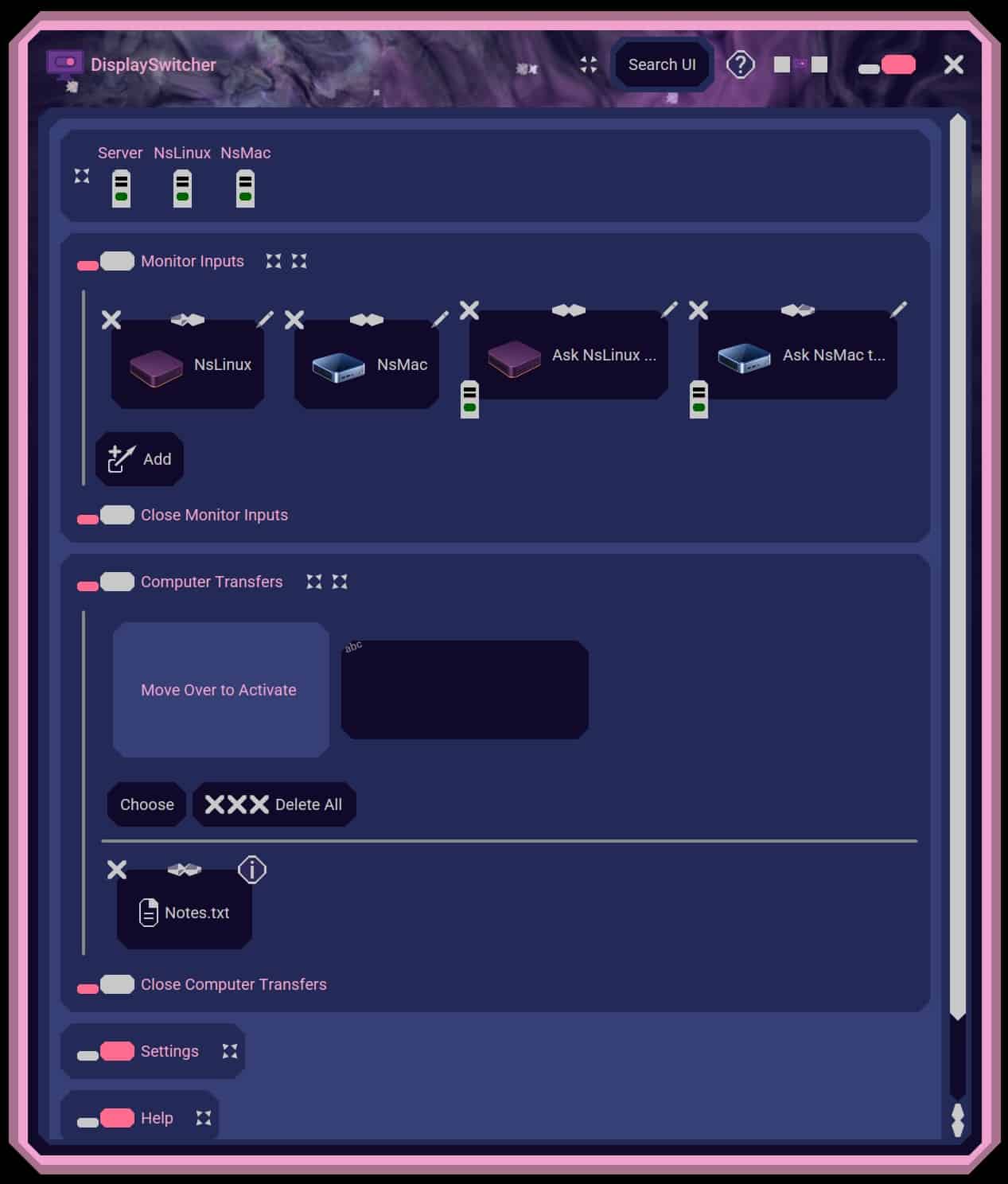
If two computers share one display, you can switch monitor input from the computer instead of reaching for buttons on the monitor. This guide shows how to prepare the connections, change inputs with software, apply the method to a Windows and Mac setup, and verify that the correct computer is active.
Check the setup before switching
First, confirm that both computers are connected to the monitor through separate video inputs, such as HDMI, DisplayPort, or USB-C. Note which input belongs to each computer.
Use this checklist:
- Both computers are powered on.
- Each computer has a separate cable to the monitor.
- The monitor supports switching between those inputs.
- You know the input name or number for each computer.
- The computers can run a monitor-control application.
Some monitors expose input selection through software, while others require a connected computer that can send the command. If the computer you are using cannot switch the monitor directly, another connected computer may be able to perform the action.
This is the core of monitor input switching: sending the monitor’s input command from software rather than using its front or rear controls.
Install software to switch monitor input
DisplaySwitcher provides a software button for changing the active video input on Linux, macOS, and Windows. It is useful when you regularly move between computers and want to control monitor input from Windows, macOS, or Linux without touching the display.
Install DisplaySwitcher on the computers involved, then open it and identify the monitor and available inputs. Assign clear labels, such as:
- Windows workstation: DisplayPort 1
- MacBook: HDMI 2
If your monitor has more than one display, select the specific monitor before testing. Then click the button for the computer you want to use. This is how to change monitor input without buttons while staying at your keyboard and mouse.
DisplaySwitcher also transfers text and files between computers using cut-and-paste, drag-and-drop, or file browsing. That can be useful when switching inputs is part of a larger cross-platform workflow. See the file transfer products category for the related capability.
Apply it to a real Windows and Mac workflow
Imagine that your Windows computer is active on DisplayPort 1 and your Mac is connected through HDMI 2.
To move to the Mac:
- Save any work that needs attention on Windows.
- Open DisplaySwitcher on Windows or the computer configured to control the monitor.
- Select MacBook or HDMI 2.
- Wait for the monitor to change inputs.
- Wake the Mac if its screen remains blank.
- Confirm that the Mac desktop and pointer are visible.
To return to Windows, repeat the process and select DisplayPort 1. You can use the same approach across Linux, macOS, and Windows, provided the monitor-control setup is available on the connected computers. This supports macOS products and Windows products without requiring physical monitor controls.
Verify the switch and fix common mistakes
Do not stop when the monitor appears to change. Verify the actual result:
- Confirm the visible desktop belongs to the intended computer.
- Open a small file or application on that computer.
- Check that keyboard and mouse input reaches the active system.
- Switch back once, then switch again, to confirm the action is repeatable.
- Record the input label if you had to test several ports.
If nothing changes, check that the monitor is awake, the selected input name is correct, and the video cable is connected firmly. If the wrong screen appears, you may have selected a similarly named input or a different monitor.
For repeated use, create a simple routine: select the target computer, wait for its desktop, and perform one visible action. That verifies the change improved the real outcome, not just the software status.

