This task can be performed using Open Portal
Screenshots that answer back.
Box and redesign an element
Open the interface you want to change, then choose one element and define the intended outcome. AI tools work better when you specify whether you need an explanation, a polished redesign, an ad, or a thumbnail.
Box the element tightly while keeping enough surrounding context to show its purpose. Describe what to preserve, what to change, and the desired format. Review the result, then adjust the selection or prompt if important details were missed.
Best product for this task

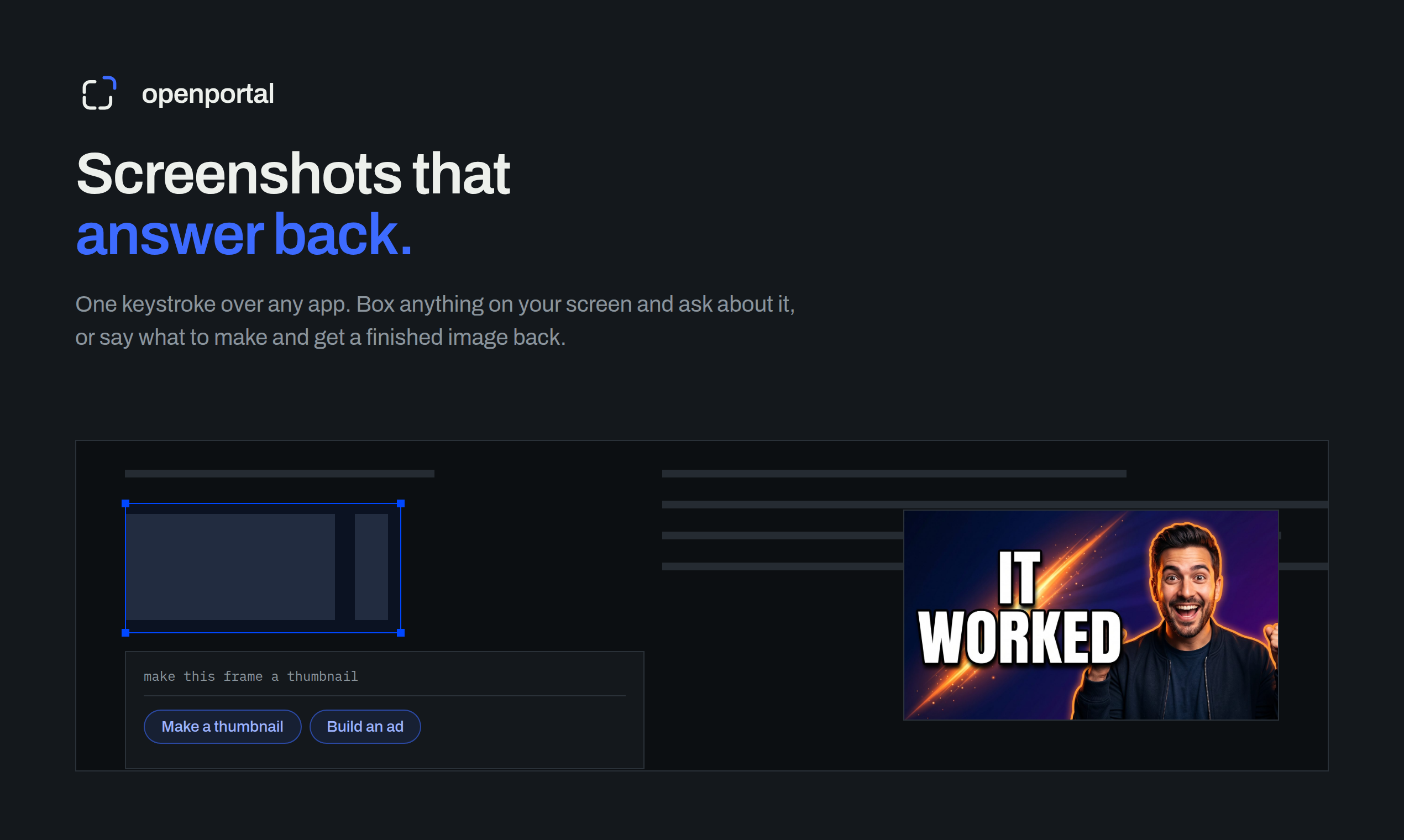
Fastest way to ask AI about anything on your screen. Box anything on your screen. Get an answer, or a finished thumbnail, ad, or redesign.
What to expect from an ideal product
- Draw a box around any button, layout, or UI component and get an instant redesign suggestion without leaving your screen.
- Open Portal reads what is inside your selection and returns a finished visual, not a vague description or a prompt to copy elsewhere.
- Works on any screen you can see, design tools, live websites, dashboards, or app mockups, no export or file upload needed.
- Cut the feedback loop between spotting a bad UI pattern and getting a usable fix down to seconds instead of hours.
- Ask why a layout feels off and get a specific answer tied to exactly what you boxed, not generic design advice.
More about selection boundaries
A reliable AI redesign workflow depends on framing. Include the full element and only the nearby content needed to understand its role, state, and visual constraints.
- Capture labels, icons, and the current state without clipping edges.
- Exclude unrelated panels that could confuse the requested scope.
- If the result changes too much, redraw tighter and state what must remain.
More topics related to Open Portal
Similar topics
- How to use open portal for founder, maker, and growth workflows
- How to ask AI a question about anything visible on your screen?
- How to turn a screenshot into a finished ad or thumbnail automatically?
- How to Use a Screen-Aware AI Assistant on Mac or Windows
- How to Use AI to Explain Errors, Dashboards, and Charts from Screenshots

