This task can be performed using Concierge SDK
In-app support for mobile apps, run from any LLM
Best product for this task

Concierge SDK
dev-tools
Concierge is an in-app support SDK that adds native chat with documentation-aware AI responses and an MCP-powered inbox to iOS, Android, React Native, Flutter, and web projects in just a few minutes.
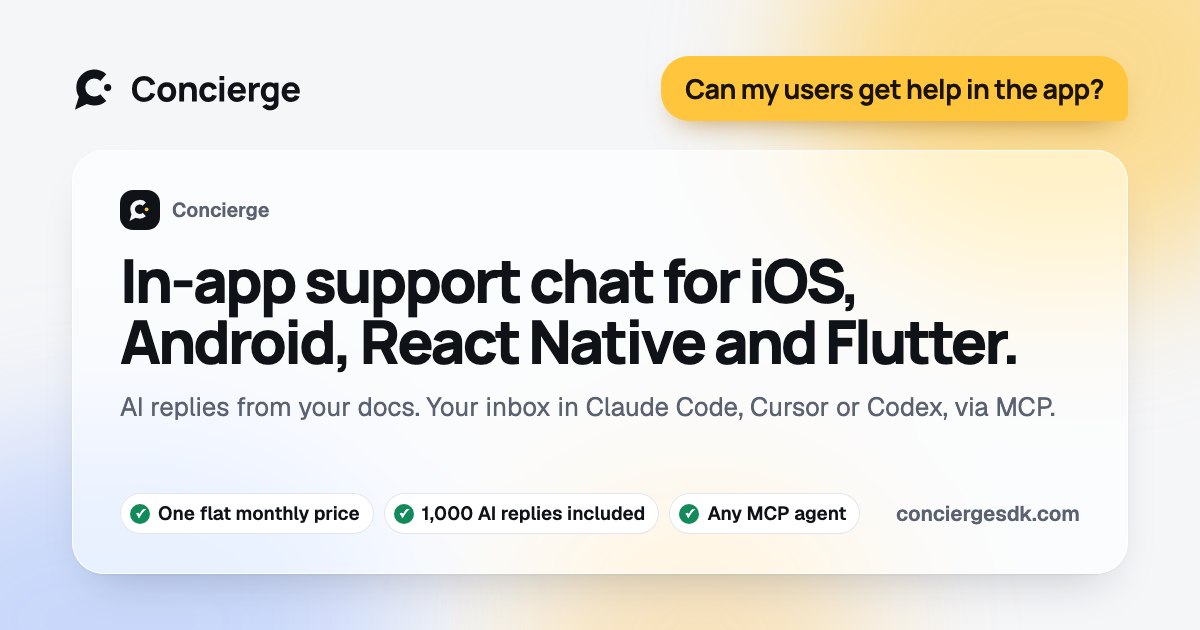
If you need an MCP customer support inbox for a mobile app, connect the Concierge MCP server to Claude Code or another MCP-compatible assistant. You can then read, update, route, and resolve conversations without constantly switching to a separate dashboard, while keeping device and version context attached to each issue.
Check the prerequisites
Before connecting your customer support inbox for Claude Code, confirm that you have: The deciding factor among dev-tools products is whether they support this exact workflow.
- A Concierge project with in-app chat enabled
- An MCP-compatible coding assistant
- Access to your project’s Concierge MCP configuration
- Documentation available for the AI agent, if you want automated answers before escalation
Concierge is an in-app helpdesk product that adds native support chat to iOS, Android, React Native, Expo, Flutter, and web projects. If the mobile chat itself is not installed yet, start with the guide to integrating native support chat.
Connect the MCP server to your assistant
- Open the MCP settings for your coding assistant.
- Add the Concierge MCP server using the connection details provided for your project.
- Restart or refresh the assistant so it discovers the available tools.
- Ask the assistant to list the available support operations.
A useful first prompt is:
Connect to the Concierge support MCP server.
List unread conversations, including app version, platform, and latest message.
Do not modify any conversation yet.
Concierge provides 51 read and write tools, so the assistant can act as an operator rather than only summarizing data. This makes it a practical mcp server for mobile app support and a fit for teams that want to manage customer support from Claude Code.
Verify that the response includes real conversation records and context such as platform or app version. If the assistant cannot see conversations, check the server connection, project selection, and permissions before attempting write actions.
Read, route, and update conversations
Use a repeatable workflow for each support session:
- Read: Ask for new or unresolved conversations, filtered by status or urgency.
- Inspect: Request the full thread and its available device context.
- Classify: Decide whether the issue is a documentation question, bug report, account issue, or escalation.
- Update: Add an internal note, change status, or assign the conversation.
- Reply: Draft a response grounded in your product documentation.
- Resolve: Mark the thread resolved only after the response or handoff is complete.
Example prompt:
Review unresolved conversations from the last 24 hours.
Group them by issue type. For each bug report, include platform, app version,
and the latest user message. Draft replies, but do not send or resolve anything.
Then approve changes explicitly:
Assign the login issue to the human support queue, add a note with the
reproduction details, and leave the conversation open.
This approach preserves context that can disappear when support work is copied between chat, logs, and a dashboard. It also lets indie teams use mcp support tools for indie app developers without building a custom operations panel.
Choose the right operating model
An LLM-operated inbox works best when you separate read actions from write actions. Use automatic reads for triage, but require confirmation before sending replies, changing assignments, or resolving conversations.
You can also combine the inbox with a documentation-grounded agent. Common questions may receive AI responses, while complex issues are routed to a person with the original conversation and app context. This is different from using a generic AI support widget, because the workflow includes both the in-app experience and developer-controlled inbox actions.
Before relying on the workflow, run this checklist:
- The assistant can list and open conversations
- Platform and version context is visible
- Draft replies are reviewed before sending
- Routing and resolution actions require confirmation
- Human escalations retain the complete thread.