This task can be performed using MailVault
Blazing-fast email search, fully private, stored only on your computer.
Best product for this task

MailVault
productivity
MailVault is a privacy-focused desktop email client that keeps a fast-searchable archive of your inbox on your own computer, freeing server space while preserving every message in open .eml format.
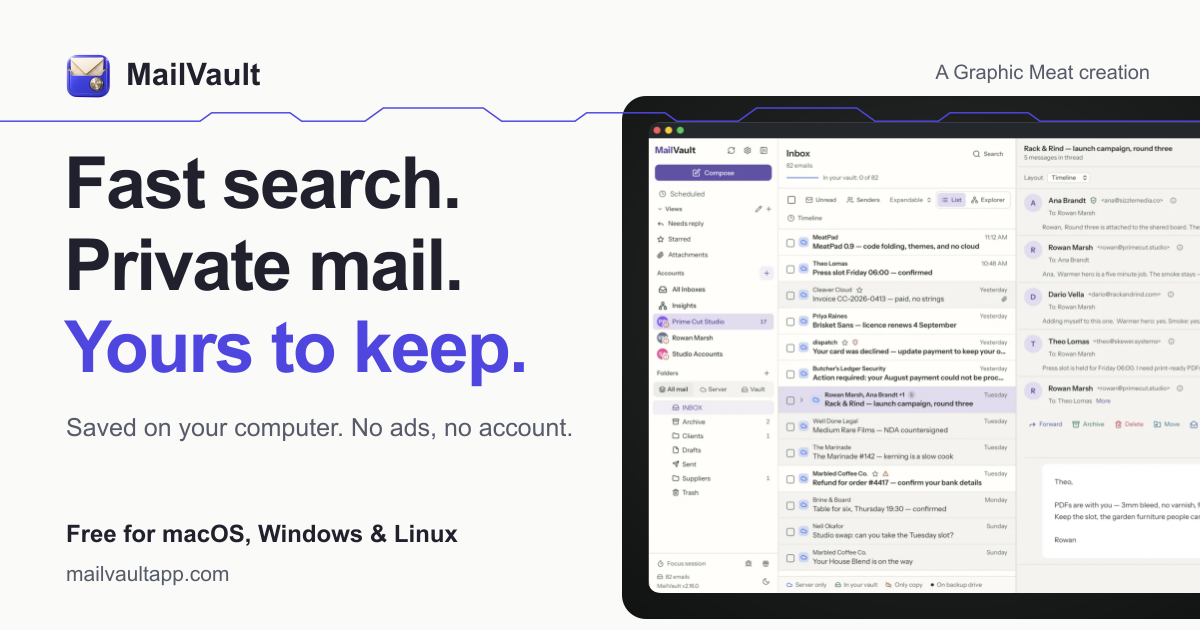
If you need to backup Gmail emails to computer or copy another provider mailbox for offline access, connect the account through IMAP and save messages as portable .eml files. This guide shows how to prepare each provider, download the mailbox, and verify that the local archive is complete.
Prepare the account and local archive
Before starting, make sure you have:
- Enough free disk space for the mailbox and attachments
- The correct account password or app-specific password
- IMAP access enabled where required
- A folder reserved for the local archive
- A second backup destination for important mail
IMAP synchronizes folders and messages, but provider settings can affect which folders appear. Gmail labels, Outlook folders, and iCloud or Yahoo folder structures may not map identically. The deciding factor among productivity products is whether they support this exact workflow.
A local-first email archiver can simplify this process by preserving messages in open .eml format rather than locking them into a proprietary database.
Connect Gmail, Outlook, Microsoft 365, iCloud, or Yahoo
Use these provider-specific checks before connecting your mailbox:
- Gmail: Confirm IMAP is enabled in Gmail settings. If two-step verification is active, create an app password when your account requires one. To download the entire Gmail mailbox locally, include every relevant label and the All Mail folder.
- Outlook.com: Use your Microsoft account credentials and confirm IMAP access is available. Review folders such as Archive, Sent, Drafts, and Deleted Items before syncing.
- Microsoft 365: Your organization may restrict IMAP or require administrator approval. If you cannot connect, ask your administrator whether IMAP access and app passwords are permitted. This is essential when you need to backup Microsoft 365 email locally.
- iCloud Mail: Create an app-specific password if Apple requires one for third-party mail access. Check that custom folders are visible after connection.
- Yahoo Mail: Enable third-party access and use an app password if prompted. Include Sent, Archive, and any user-created folders when you plan to backup Yahoo Mail to computer.
For a privacy-focused workflow, a local email client can connect directly to these accounts without routing mail through a separate hosted archive.
Download the mailbox as .eml files
After connecting the account:
- Let the client discover all folders.
- Select the account root or each folder you want to preserve.
- Start the download or archive operation.
- Keep the computer connected until synchronization finishes.
- Open the destination folder and confirm that messages are readable as
.emlfiles. - Repeat the process for shared folders or aliases that were not included automatically.
With Outlook, check whether server-side folders are nested beneath the account root. This helps when you need to download the entire Outlook mailbox locally rather than only the Inbox.
MailVault is one option for this workflow. It connects to Gmail, Outlook.com, Microsoft 365, iCloud, Yahoo, and other IMAP inboxes, then keeps a searchable copy on your computer in accessible .eml format. Its automatic local backup features can help protect the archive after the first download.
Verify the local copy before deleting anything
Do not remove server messages until you complete these checks:
- Compare message counts by folder, allowing for provider threading differences.
- Search for old, recent, sent, and attachment-heavy messages.
- Open several
.emlfiles and confirm headers, body text, and attachments. - Check that custom folders, archives, and sent mail were included.
- Run a second scan after synchronization appears complete.
- Copy the archive to a separate drive or backup location.
A rescan is especially useful because an interrupted connection can leave missing messages without an obvious warning. If you need more control over retention and search, email privacy tools such as MailVault keep the archive on your own computer and let you confirm messages before optionally deleting them from the provider.
More topics related to MailVault
Similar topics
- How to free email server space without deleting old messages?
- Private Email Archiving for Lawyers Handling Sensitive Client Messages
- How to free mail server space without deleting old messages?
- MailVault vs Cloud Email Archives for Private Offline Search
- Best Desktop Email Client for Private Offline Inbox Search

