This task can be performed using MailVault
Blazing-fast email search, fully private, stored only on your computer.
Best product for this task

MailVault
productivity
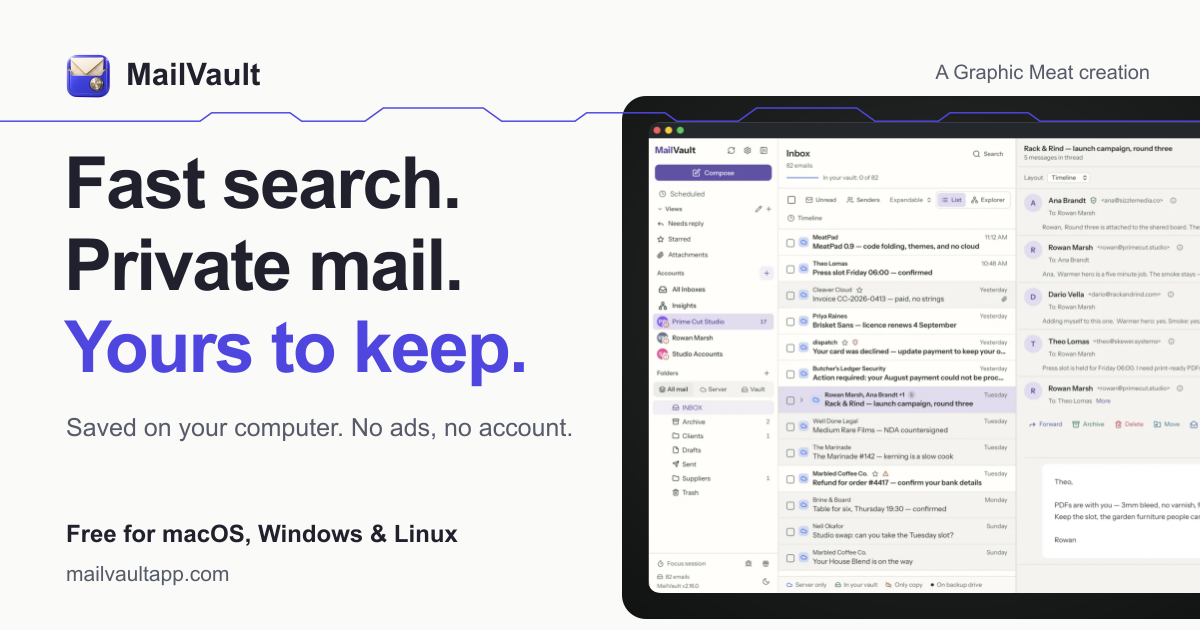
MailVault is a privacy-focused desktop email client that keeps a fast-searchable archive of your inbox on your own computer, freeing server space while preserving every message in open .eml format.
If your email archive already lives on your computer, protect it with scheduled backups, versioned snapshots, and an external-drive copy. This guide shows how to create an email backup to local computer workflow without cloud storage, verify that messages are complete, and recover after accidental deletion, hardware failure, or a system change.
Prepare the local archive and backup locations
Before configuring automatic backups, confirm that your archive is stored in an open format and decide where its copies will live. The deciding factor among productivity products is whether they support this exact workflow.
You need:
- A local email archive, preferably as individual
.emlfiles - Enough space for the archive and several historical versions
- An external hard drive or another locally controlled disk
- A backup application that supports schedules and versioned backups
- A simple recovery test plan
A privacy-focused desktop client such as MailVault keeps a searchable copy of messages on your computer as portable .eml files. This makes the archive easier to inspect, move, and restore than a format tied to one provider or application. It also fits the needs of email archiver products when the goal is long-term local preservation.
Create a backup folder outside the active archive, such as:
Email Archive/
Email Backups/
Email Backups/External/
Do not place the backup inside the archive itself. That can cause recursive copies or make both files disappear together.
Configure scheduled and versioned backups
Use your email application’s automatic backup feature, your operating system’s backup utility, or scheduled email backup software.
- Select the complete archive folder, including attachments and metadata.
- Set a schedule, such as daily backups during nonworking hours.
- Enable versioned backups or snapshots.
- Keep several historical versions rather than replacing one backup file.
- Exclude temporary cache folders only if you have confirmed they are not needed for recovery.
- Set the destination to a local disk first, then copy versions to an external drive.
A useful retention example is:
- Daily versions for the last 14 days
- Weekly versions for three months
- Monthly versions for one year
Versioned backups help recover a message that was deleted or changed days earlier. If you use macOS, a Time Machine email archive backup can provide snapshots of the archive folder, but confirm that the folder is included in the backup scope.
For a fully local workflow, choose email privacy products that do not require sending the archive to a remote service. MailVault also provides scheduled backups, Time Capsule snapshots, and manual backups, so you can combine automatic protection with an on-demand copy before major system changes.
Copy the archive to an external drive
An external copy protects against internal drive failure, malware, or an operating system problem.
- Connect the external drive.
- Run a backup that copies the complete archive, not only newly received messages.
- Keep multiple dated versions if the drive has sufficient capacity.
- Safely eject the drive after the backup finishes.
- Disconnect it when it is not being used.
This creates an email backup without cloud storage and supports email backup for business continuity. Label the drive with its archive date, and store it separately from the computer when practical.
Verify completeness and test recovery
A backup is not confirmed until you can restore from it.
After each initial backup:
- Compare the archive’s message count with the backup count.
- Check several old and recent messages.
- Open attachments from both locations.
- Confirm that
.emlfiles open correctly. - Review the backup log for skipped or locked files.
- Restore a small test folder to a temporary location.
To recover after loss, stop changing the damaged archive first. Select the newest intact version, restore it to a separate folder, and search for known senders, dates, subjects, and attachments. Only replace the active archive after the restored copy passes those checks.
More topics related to MailVault
Similar topics
- How to free email server space without deleting old messages?
- Private Email Archiving for Lawyers Handling Sensitive Client Messages
- How to free mail server space without deleting old messages?
- MailVault vs Cloud Email Archives for Private Offline Search
- Best Desktop Email Client for Private Offline Inbox Search

