This task can be performed using MailVault
Blazing-fast email search, fully private, stored only on your computer.
Archive email to local .eml files
Before starting, confirm that your computer has enough free storage for the mailbox and that you can sign in to the account. Treat the first local archive as an IMAP backup. Do not remove server copies until every folder and recent message is present.
Add the inbox to MailVault, let the initial archive finish, then search for several known messages and open their .eml files locally. Once those checks pass, remove only the server mail you intended to archive, and keep a separate copy of the archive folder.
Best product for this task

MailVault
productivity
MailVault is a privacy-focused desktop email client that keeps a fast-searchable archive of your inbox on your own computer, freeing server space while preserving every message in open .eml format.
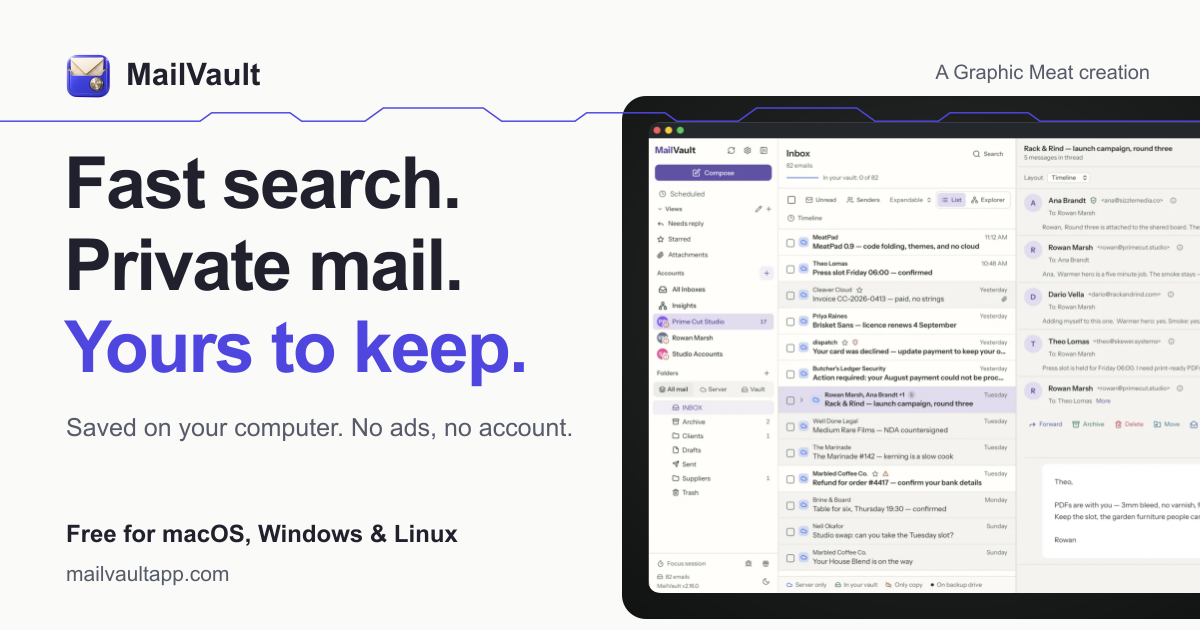
What to expect from an ideal product
- Open .eml files without proprietary lock-in
- Fast search across the local archive
- Local-only storage for mailbox privacy
- Visible progress and errors during archiving
- Reliable coverage of selected mail folders
More about safe server cleanup
Server cleanup is the irreversible step. Include the MailVault archive in your personal backups before deleting mail, especially if the computer has only one internal drive.
- Search for one old message, one recent message, and one message with an attachment.
- Check Inbox, Sent, and custom folders rather than sampling only Inbox.
- Copy the archive to another drive, then test opening one copied .eml file.
More topics related to MailVault
Similar topics
- How to free email server space without deleting old messages?
- Private Email Archiving for Lawyers Handling Sensitive Client Messages
- How to free mail server space without deleting old messages?
- MailVault vs Cloud Email Archives for Private Offline Search
- Best Desktop Email Client for Private Offline Inbox Search

