This task can be performed using Incredible
Control your computer with Voice
Best product for this task

Perfect for anyone looking to hands-free control their computer and boost productivity through voice commands. Works with your existing tools without disrupting your workflow.
If repetitive strain, limited mouse use, or difficulty operating traditional input devices makes computer work tiring, voice control can help. This guide shows how to configure a voice assistant for computer accessibility, test hands-free commands, and reduce unnecessary mouse and keyboard movement while keeping your existing tools.
Prepare Your Computer for Voice Control
Before setting up commands, make sure your computer is ready for reliable speech input. The deciding factor among AI products is whether they support this exact workflow.
- Use a microphone that clearly captures your voice. A headset can help in a noisy room.
- Position the microphone consistently, close enough for normal speaking.
- Choose a quiet workspace and close applications you do not need.
- Decide which tasks cause the most strain, such as clicking small buttons, opening files, or switching between windows.
- Create a short list of commands for those tasks.
Voice control is most useful when it removes repeated movements, not when it forces you to speak every tiny action. For guidance on the initial setup, follow this guide to setting up voice control on Mac or Windows.
Configure a Hands-Free Command Routine
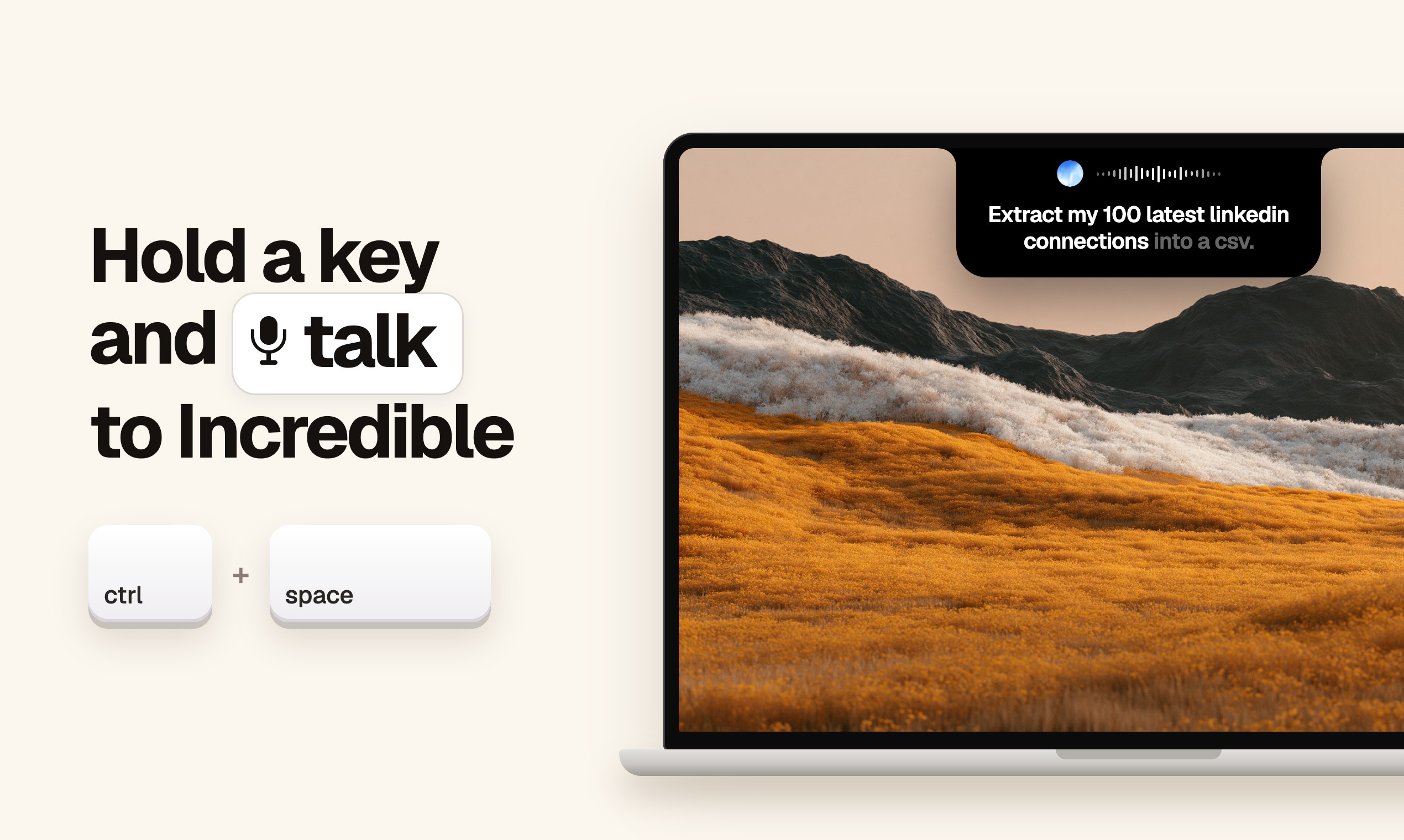
Start with a simple activation pattern. A hold-to-speak key can prevent accidental commands while allowing you to keep your hands relaxed.
Try this sequence:
- Hold the activation key.
- Speak one clear request.
- Release the key and wait for the action to finish.
- Check the screen before giving the next command.
- Repeat only when necessary.
Useful examples include:
- “Open my notes.”
- “Switch to the browser.”
- “Click the search field.”
- “Create a new folder.”
- “Move this file to Downloads.”
- “Open the next tab.”
Incredible is an AI-powered voice assistant for Mac or PC. You hold a key, speak your request, and it can execute tasks across your computer, including clicking, creating or editing files, and exploring the web. This makes it a practical computer assistant for people who cannot use a mouse comfortably.
For more specific actions, see how to click, edit files, and browse the web with voice.
Reduce Strain With Better Command Design
Hands free computer use for repetitive strain works best when commands are short, consistent, and grouped by task.
Use these adjustments:
- Replace repeated clicks with one spoken instruction.
- Say the application name when several windows are open.
- Use descriptive file names so you can locate files by voice.
- Break long requests into two steps if the result is unclear.
- Keep frequently used commands in the same wording.
For example, instead of reaching for the mouse to open a document, select a menu, and search a folder, say: “Open the project brief in Documents.” If that is unreliable, use: “Open Documents,” then “Open the project brief.”
Voice commands can also support cross-app computer workflows without changing your tools, which is useful when switching between email, documents, and browser windows creates extra input.
Check Accuracy and Fix Common Problems
Test your routine with low-risk tasks first. Confirm that the assistant understands the application, target, and intended action.
Common mistakes include:
- Commands are misheard: slow down and use fewer words.
- The wrong window is active: name the application before the action.
- Clicks land in the wrong place: enlarge the window or describe the target more specifically.
- Commands trigger accidentally: use hold-to-activate instead of always-on listening.
- You still use the mouse constantly: identify one repeated movement and replace it with a voice command.
The goal is not to eliminate every keyboard or mouse action. It is to reduce the movements that cause discomfort and give you another reliable way to control the computer. If you want to reduce mouse and keyboard use with voice, try one routine for a day, then check whether the task feels easier and more consistent.

