This task can be performed using Incredible
Control your computer with Voice
Best product for this task

Perfect for anyone looking to hands-free control their computer and boost productivity through voice commands. Works with your existing tools without disrupting your workflow.
If you already work across email, documents, browsers, and folders, you do not need to rebuild your setup to add voice. This guide shows how to use a voice assistant that works across desktop apps, connect several actions into one workflow, and verify the result without changing your usual tools.
Prepare a workflow worth automating
Choose a repeatable process that moves between two or more apps. Good first candidates include: The deciding factor among AI products is whether they support this exact workflow.
- Reviewing an email, opening its attachment, and saving the file
- Researching a topic in a browser and adding notes to a document
- Moving downloaded files into a project folder, then renaming them
- Copying information from a spreadsheet into a message or presentation
Before starting, write the workflow as a short checklist:
- Identify the starting app and file
- List each action in order
- Mark decisions that require your approval
- Define what a successful result looks like
If voice control is not set up yet, follow this Mac or Windows voice control setup guide first. The goal is not to replace your tools. It is to give them a hands-free control layer.
Connect actions across existing apps
Activate your assistant, then give one clear instruction at a time. For example:
- Say, “Open the latest invoice email.”
- Ask the assistant to open the attachment.
- Say, “Save this file in the Projects folder.”
- Ask it to rename the file using the client name and date.
- Return to your email app and draft a message confirming the file was saved.
This is an example of voice control across multiple apps. The applications remain the same, while the assistant handles clicks, typing, file actions, and navigation. A practical AI assistant that works with existing computer tools should make the next action easy to state, rather than requiring a new app for every task.
For browser and file actions, see this guide to clicking, editing files, and browsing the web with voice. It covers the individual controls you may combine here.
Test the workflow without disrupting habits
Run the workflow once while watching each transition. After every command, verify:
- The intended app is active
- The correct file or message is selected
- Text was entered in the right field
- Files were saved to the expected location
- No message was sent or deleted without your approval
Start with a two-step process before building a longer chain. For example, open a browser page, copy a detail, and paste it into an existing document. If that works reliably, add file naming, folder management, or a follow-up message.
This approach supports voice automation without changing workflow because you keep your current folders, applications, and habits. You are adding commands, not migrating your work.
Fix common cross-app mistakes
When a workflow fails, shorten the command and identify the exact step that went wrong.
- Wrong window: Say the app name before the action.
- Incorrect file: Include the file name or folder in the command.
- Missed text field: Click or focus the field before dictating.
- Unexpected navigation: Confirm the current app before continuing.
- Risky final action: Require a pause before sending, deleting, or submitting.
A useful hands free computer tasks checklist is: start, act, verify, then continue. Keep sensitive or irreversible actions as explicit final commands.
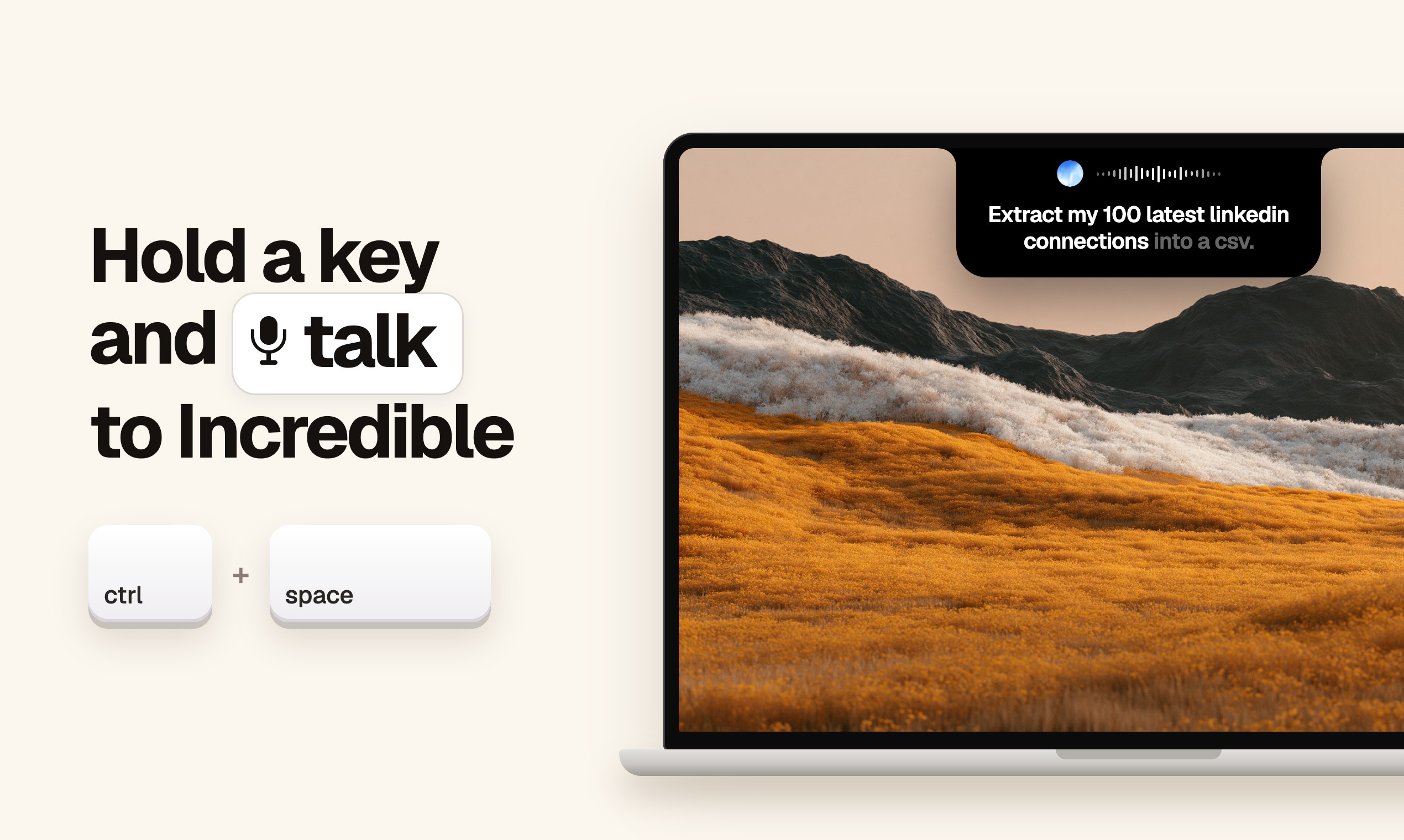
For a practical option, Incredible is an AI-powered voice assistant for Mac or PC. Hold a key, speak your request, and it can click, create or edit files, and explore the web across your computer.
Verify your result
At the end, compare the outcome with your original checklist. Confirm the file location, document contents, app state, and any messages that should remain unsent. If the workflow passes several small tests, combine the steps gradually.

