This task can be performed using Incredible
Control your computer with Voice
Best product for this task

Perfect for anyone looking to hands-free control their computer and boost productivity through voice commands. Works with your existing tools without disrupting your workflow.
If you want hands-free desktop control, you can use an AI assistant that clicks for you to open apps, manage files, and browse websites. This guide shows practical voice commands, plus a quick check after each action so you know the task completed correctly.
You will need a Mac or PC, a working microphone, and a voice assistant that can act across your existing tools. If setup is not complete, follow this voice control setup guide for Mac or Windows first.
1. Activate the assistant and click a button
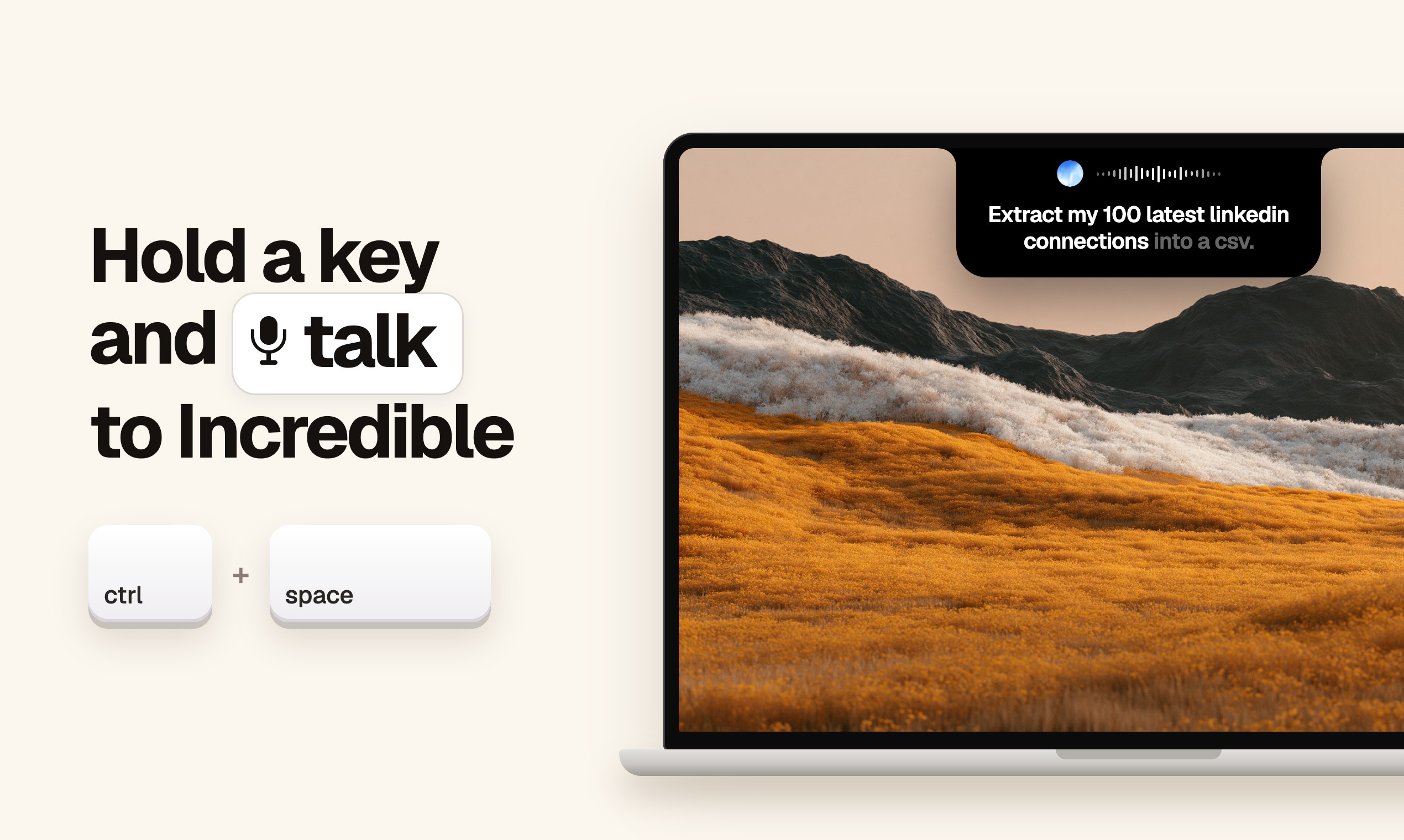
Open the app or window where you want to work. With Incredible, hold the activation key, speak your request, and let the assistant perform the action.
Try commands such as:
- “Click the Save button.”
- “Click the Settings icon.”
- “Select the second option.”
- “Click Continue, then close the window.”
This is useful when you need a voice assistant that clicks buttons based on visible labels or controls. It can also help answer the practical question of how to click on a computer using voice without reaching for a mouse.
Check the result: confirm that the button changed state, a new window appeared, or the next screen loaded. If nothing happened, make the command more specific, such as “Click Save in the document window.”
For broader ideas about voice-driven tools, browse the AI products category when choosing where this kind of assistant fits your workflow.
2. Open applications and manage files
Use a direct command to launch the tool you need:
- “Open my browser.”
- “Open the Documents folder.”
- “Launch the text editor.”
- “Open the file called project notes.”
A voice assistant that opens apps can reduce the steps between an idea and the tool you need. Once an application is open, continue with file actions:
- “Create a new text file called meeting notes.”
- “Save it in the Documents folder.”
- “Rename this file to final draft.”
- “Move the file called budget to the Reports folder.”
This makes Incredible useful as a voice controlled file management assistant, especially for simple create, rename, move, and save tasks.
Check the result: look for the application window, confirm the file name and location, and verify that the file opens. For important files, say, “Open the saved file and confirm its title.”
3. Edit documents with voice commands
Open the document, place the cursor where the change belongs, and give one action at a time. Examples include:
- “Add a heading called Next Steps.”
- “Replace ‘Thursday’ with ‘Friday.’”
- “Select the last paragraph and delete it.”
- “Save the document.”
These commands support editing documents with voice on a computer without changing your existing editor. Keep requests narrow when wording or formatting matters.
Check the result: read the changed sentence, confirm the correct paragraph was selected, and save only after reviewing the edit. If the assistant selects the wrong text, undo the action and repeat with a clearer location.
4. Browse websites and verify each step
To browse the web with voice commands, open the browser and use sequential requests:
- “Open the browser.”
- “Go to the search page.”
- “Search for keyboard shortcuts.”
- “Open the first result.”
- “Scroll down and click the contact link.”
You can also say, “Use voice commands to browse websites,” by naming the page, link text, or search term. This creates a practical voice assistant for browser workflows and supports hands-free research.
Check the result: confirm the address or page heading after navigation. Before submitting forms or downloading files, pause and review the target, especially when several similar buttons appear.
Common mistakes include vague commands, speaking several unrelated tasks at once, and skipping verification. Break complex work into short actions.
For a ready-to-use desktop assistant, see Incredible. Test one click, one file action, and one web search, then confirm each visible result before expanding your voice workflow.

