This task can be performed using Incredible
Control your computer with Voice
Best product for this task

Perfect for anyone looking to hands-free control their computer and boost productivity through voice commands. Works with your existing tools without disrupting your workflow.
If you want to control your Mac or Windows PC with voice commands, start by checking your operating system, microphone permissions, and preferred assistant. This guide walks you through setup, software selection, and simple tests so you can begin hands-free work without changing your existing tools.
1. Prepare your computer and microphone
Before enabling voice control, complete these checks:
- Confirm whether you use macOS or Windows.
- Connect a working microphone or headset.
- Update your operating system if updates are available.
- Close sensitive apps while testing voice commands.
- Decide whether you need basic dictation or full computer control.
A quiet room and a clear microphone make commands easier to recognize. If speech input works in a video call or recording app, your microphone is probably ready.
2. Choose the right voice control setup
Built-in accessibility features can provide a useful starting point for basic voice control for Mac or Windows. They are suitable for commands such as opening apps, selecting controls, and dictating text. Check your system settings for voice control or voice access, then enable microphone permission when prompted.
For more flexible computer control, choose an assistant that can work across your existing apps. An AI assistant can be useful when you want to describe a task instead of memorizing many fixed commands. The broader AI products category can help you understand where voice assistants fit among other computer tools.
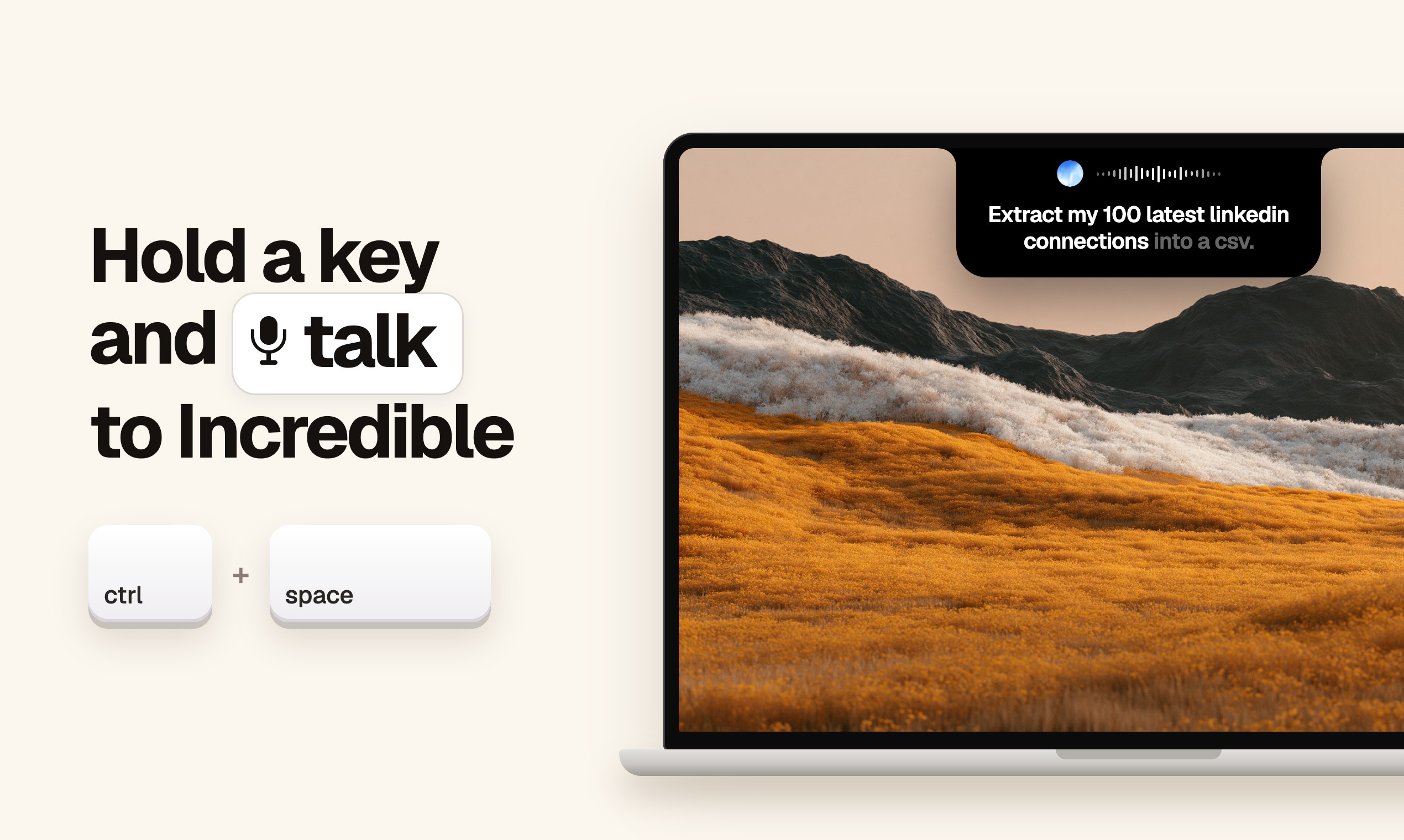
Incredible is an option for users who want a voice productivity assistant for Mac or PC. You hold a key to activate it, speak your request, and it can execute actions across your computer, including clicking, creating or editing files, and exploring the web. See how Incredible handles voice computer control if this matches your setup.
Choose based on your goal:
- Use built-in controls for basic accessibility and dictation.
- Use an AI assistant for multi-step tasks across apps.
- Choose a hands free work assistant for Mac or PC when reducing keyboard and mouse use is the priority.
3. Enable permissions and test commands
Open your computer’s privacy or accessibility settings and allow the selected voice tool to access the microphone. If the tool needs to interact with windows, files, or other apps, review its accessibility permissions as well.
Start with simple commands:
- Open a familiar application.
- Move focus to a text field.
- Dictate a short sentence.
- Ask the tool to click a visible button.
- Create a temporary file or folder.
- Close the application.
For example, test commands such as “open my browser,” “type today’s notes,” or “create a folder called Voice Test.” If you are learning how to control a Mac with voice commands, verify each action before moving to the next. The same approach works when learning how to control a PC with voice commands.
4. Fix common setup problems
If nothing happens, check that the assistant is active and listening. Confirm the correct microphone is selected, then repeat the command more slowly.
If words are transcribed incorrectly:
- Reduce background noise.
- Move closer to the microphone.
- Use shorter commands.
- Check the language and keyboard settings.
If a command opens an app but cannot click or edit, revisit accessibility permissions. Avoid testing file deletion, account changes, or other irreversible actions until basic commands work reliably.
Once your tests pass, create a small routine for opening your main apps, drafting text, and managing files. For a broader voice control software for Mac and PC comparison, focus on permission needs, activation method, and support for your normal workflow. Then confirm that the assistant can complete one real task safely before relying on it for daily work.
More topics related to Incredible
Similar topics
- Best Voice Control Software for Hands-Free Computer Productivity
- Voice Command Workflows for Typing, Browsing, and Managing Apps
- How to Add Voice Control Without Changing Your Existing Workflow?
- How to Control Your Computer Hands-Free Using Voice Commands?
- How to Click, Edit Files, and Browse the Web With Voice

