This task can be performed using PDFTranslator
Free PDF Translate Online
Best product for this task
PDFTranslator
productivity
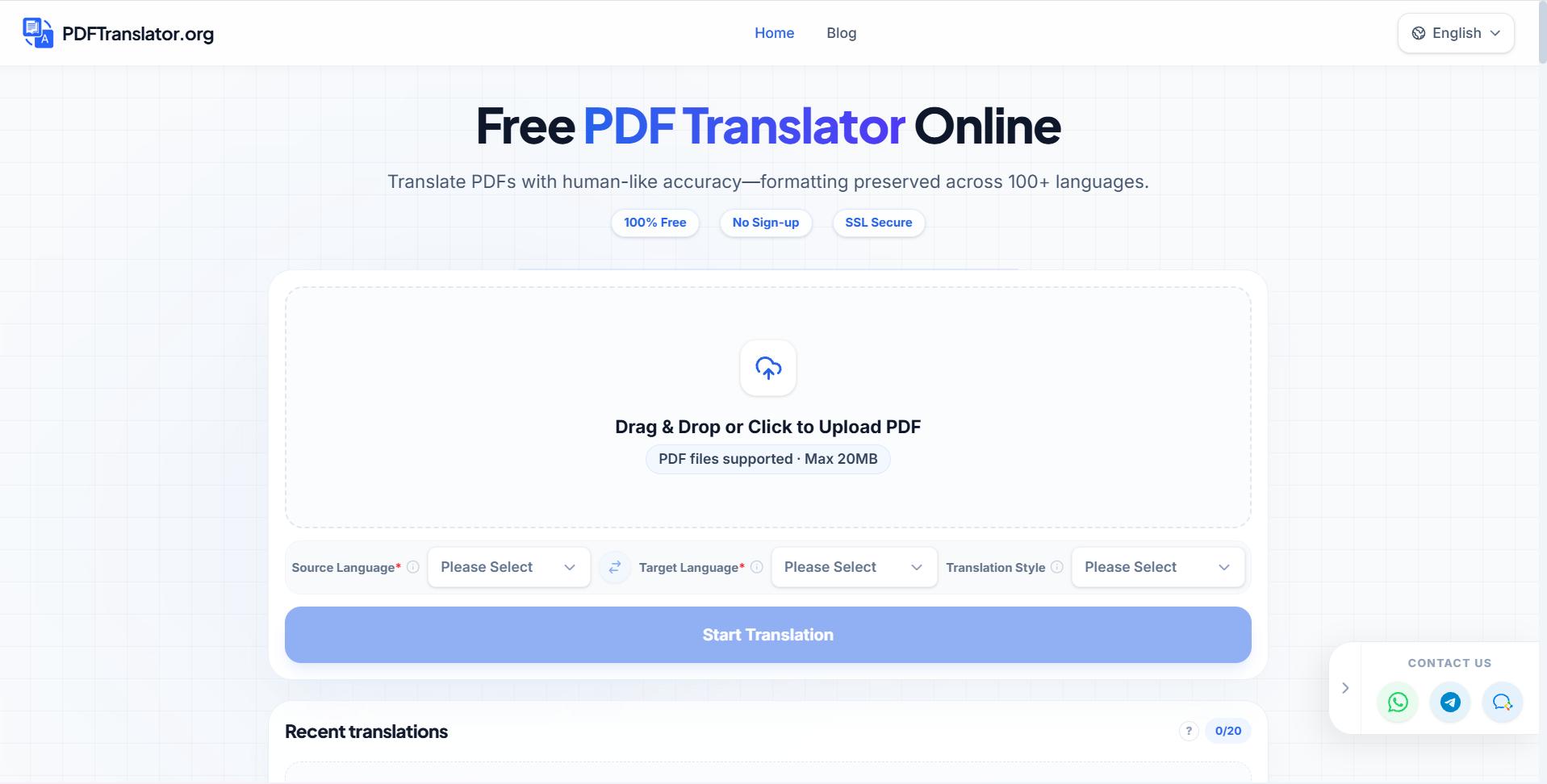
Free PDF Translate is an online PDF translate tool that translates documents without compromising formatting. Using advanced AI PDF translate technology, it supports nearly 100 languages while maintaining layout integrity.
If you need to translate scanned PDF online free, prepare the file first, then use an AI PDF translator and verify every page. This guide covers image-based scans, technical PDFs, research papers, textbooks, and large files while helping you preserve readable text and page structure.
1. Check what kind of PDF you have
Open the file and try to select a sentence.
- If you can select text, it is likely a standard text PDF.
- If you cannot select text, it is a scanned or image-based PDF.
- If pages contain diagrams, formulas, tables, or multiple columns, treat it as a complex PDF.
- If the file is unusually long or slow to open, plan to translate it in smaller sections if necessary.
A scan may contain skewed pages, shadows, handwriting, or low contrast. These issues can cause missing words during text recognition, so review the clearest version of the file before uploading it. The deciding factor among productivity products is whether they support this exact workflow.
For a suitable online PDF translator, choose a tool that can process scanned content and retain the original page structure.
2. Prepare the file before translation
Use these quick checks:
- Remove password protection if you have permission.
- Rotate sideways pages.
- Replace blurry scans with higher-resolution copies.
- Confirm that the source and target languages are correct.
- Split an extremely large PDF into logical sections.
- Save the original file as a backup.
For example, split a 300-page textbook by chapter rather than creating many random page ranges. For a research paper, keep the abstract, tables, references, and appendices together when possible.
If your goal is to translate image PDF without reformatting, avoid converting pages into separate screenshots. Upload the original PDF so the translator has more page context.
3. Upload and translate the PDF
Open PDFTranslator, upload the prepared document, select the source language, and choose the target language. PDFTranslator uses AI PDF translation and supports nearly 100 languages while aiming to maintain layout integrity.
This workflow can also help when you need to translate a technical PDF online, translate a research paper PDF free, or translate a PDF textbook online. Complex pages may take longer to process than simple text pages.
For large files, use the service’s available upload limits. If the document fails, try a smaller chapter or section, then translate the remaining sections separately. Keep consistent language settings across every upload.
You can also compare approaches through free PDF translation products if you are deciding which workflow fits your file.
4. Inspect the translated output
Do not assume a completed download means every page translated correctly. Check:
- The first and last pages.
- Pages with dense paragraphs.
- Tables, captions, footnotes, and references.
- Formulas, symbols, and numbered lists.
- Headers, page numbers, and text inside diagrams.
- Pages that were originally blurry or tilted.
Search the translated file for an obvious heading or repeated term. Then compare several pages with the original side by side. Look for blank areas, untranslated fragments, overlapping text, changed line breaks, or misplaced images.
A manual review is especially important for legal, academic, medical, and engineering content. Translation tools can help preserve formatting, but specialized terminology and low-quality scans still require human checking. For a broader selection workflow, see AI PDF translator options.
Common mistakes to avoid
- Uploading a blurry screenshot instead of the original PDF.
- Choosing the wrong source language.
- Translating a large file without checking whether all pages were processed.
- Ignoring tables and text embedded in images.
- Editing the translated file before confirming missing content.
- Treating machine translation as a final expert review for high-risk documents.
When the output passes your page-by-page checks, save it with a clear filename that includes the target language. You now have a practical way to translate scanned, complex, technical, academic, or large PDFs online while keeping the result readable and organized.
More topics related to PDFTranslator
Similar topics
- How to fix broken formatting after translating a PDF online?
- Online PDF Translation Workflow for Global HR and Recruiting Teams
- Free PDF Translation for International Student Applications and Academic Records
- How to Choose an AI PDF Translator for Accurate Results
- How to Translate Business PDFs and Check the Final Document

