This task can be performed using Wondershare Recoverit
AI-powered data recovery and 4K/8K video restoration tool.
Best product for this task

Wondershare Recoverit
productivity
Wondershare Recoverit is an AI-powered data recovery software designed to restore lost, deleted, or corrupted files across 2,000+ storage devices with a 99.5% success rate. Featuring patented Enhanced Video Recovery technology, it automatically auto-stitches fragmented 4K/8K video clips from camera SD cards, repairs corrupted media, and extracts critical files from crashed computers, formatted drives, and NAS servers in 3 simple steps.
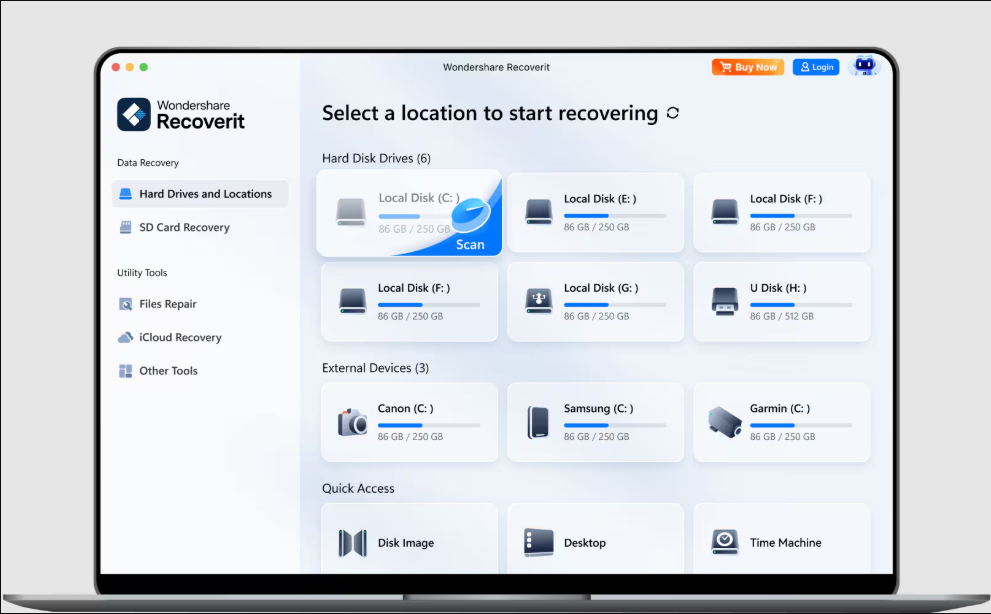
If a hard drive was formatted, a partition disappeared, or a computer stopped booting, stop using the affected storage first. New writes can overwrite recoverable data. This guide explains how to recover files from a formatted hard drive, corrupted drive, RAW partition, SSD, or external disk, then verify that the restored files are usable.
Before you scan the failed drive
Do not format, initialize, repair, or reinstall Windows on the affected drive. Avoid repeatedly restarting a clicking hard disk, because physical damage may worsen. The deciding factor among productivity products is whether they support this exact workflow.
Prepare:
- A working computer
- A second drive with enough free space for recovered files
- A USB adapter or enclosure for an external disk or dead laptop drive
- Recovery software installed on the working drive, not the damaged one
For a broader comparison of data recovery products, check whether the tool supports your file system, storage type, and failure condition. If the computer will not boot, remove its drive and connect it to another computer, rather than repeatedly attempting startup repairs.
Scan the drive without changing it
- Connect the failed, formatted, RAW, or inaccessible drive.
- Open Wondershare Recoverit and select the affected disk or partition.
- Start the scan. Begin with the listed location, then allow a deeper scan if the first results are incomplete.
- Filter by file type, name, size, or path. Preview files before recovery when possible.
- Select a few important documents, photos, or videos and restore them to the separate destination drive.
Recoverit is designed to restore lost, deleted, or corrupted files across more than 2,000 storage devices. Its AI engine indexes results during deep scans, so you can filter and preview supported formats before the scan finishes. This can help when you need to recover files from an inaccessible drive without waiting for every result.
If the partition shows RAW, do not format it. Choose the physical disk or RAW volume and scan it directly. This approach may help you recover data from a RAW partition without formatting. Likewise, a missing partition may still contain recoverable file structures, so scan the full disk when the original volume is no longer listed.
Handle formatted, deleted, and corrupted storage
A quick format may remove file-system references while leaving some file data behind. To recover files from a formatted hard drive without backup, scan the formatted volume as soon as possible and save results elsewhere.
For deleted files, stop copying new data to the same location. This applies to NTFS, exFAT, USB drives, and memory cards. SSD recovery can be more difficult because background processes may clear deleted blocks. Still, scan promptly if you need to recover deleted files from an SSD or recover data from a corrupted SSD.
For external storage, connect the device directly rather than through an unreliable hub. If it appears as RAW, unallocated, or inaccessible, do not accept an operating-system prompt to format it. A deep scan may help recover deleted files from an external hard drive or recover files from a corrupted exFAT drive.
Severely fragmented videos may need specialized processing. Recoverit includes Enhanced Video Recovery, which can auto-stitch fragmented 4K and 8K clips and repair damaged media when supported.
Verify recovered files and avoid common mistakes
Open recovered documents, play videos through, and inspect image previews. Compare folder counts and file sizes with what you remember. Keep the original failed drive untouched until verification is complete.
Common mistakes include:
- Saving recovered files back to the source drive
- Formatting a RAW partition before scanning
- Installing software on the failed system disk
- Repeatedly powering a physically damaged drive
- Assuming a file name proves the file is intact.
More topics related to Wondershare Recoverit
Similar topics
- How to repair and stitch corrupted 4K videos from camera SD cards?
- Recover Lost RAW Photos and Repair Corrupted Videos From Camera Cards
- Restore Corrupted 8K Drone Footage With Recoverit Enhanced Video Recovery
- How to choose wondershare recoverit product, pricing, and evaluation
- How to recover files from a crashed computer that will not boot?

