This task can be performed using Wondershare Recoverit
AI-powered data recovery and 4K/8K video restoration tool.
Best product for this task

Wondershare Recoverit
productivity
Wondershare Recoverit is an AI-powered data recovery software designed to restore lost, deleted, or corrupted files across 2,000+ storage devices with a 99.5% success rate. Featuring patented Enhanced Video Recovery technology, it automatically auto-stitches fragmented 4K/8K video clips from camera SD cards, repairs corrupted media, and extracts critical files from crashed computers, formatted drives, and NAS servers in 3 simple steps.
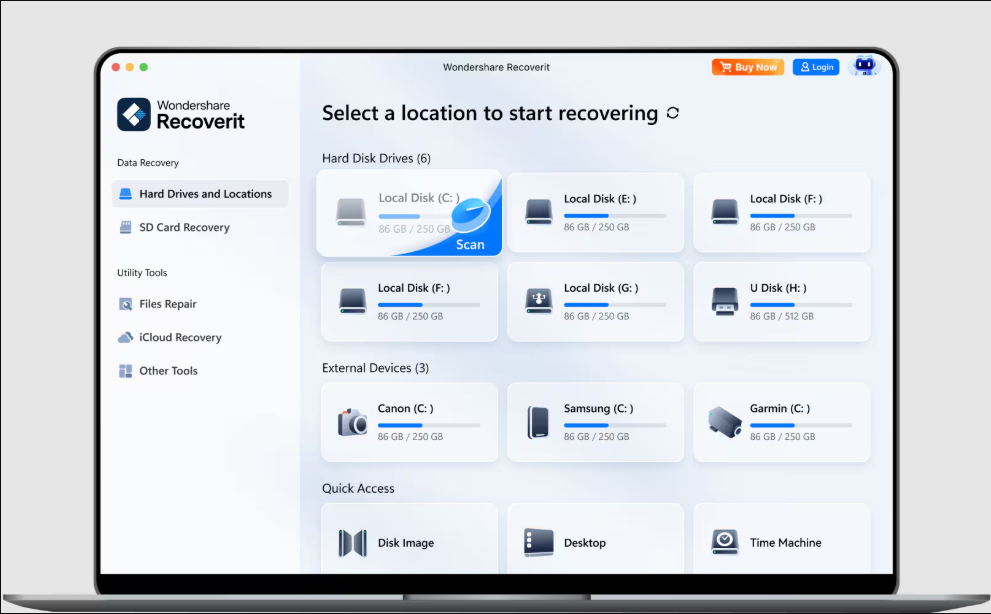
When files disappear, the safest choice depends on what happened, where the data was stored, and whether the files are damaged. The right AI data recovery software should support deleted and corrupted files, scan multiple devices, preview results, and restore files to a separate location.
Wondershare Recoverit is one option to evaluate. It supports more than 2,000 storage devices and uses AI-assisted scanning, file preview, and Enhanced Video Recovery for fragmented 4K and 8K media. Compare its capabilities with your situation before starting a scan.
1. Identify the recovery situation first
Use this quick check before installing software:
- Deleted files still may be recoverable if their storage space has not been overwritten.
- Emptying the Recycle Bin does not necessarily remove file data immediately, but continued use can reduce recovery chances.
- Formatted drives and corrupted file systems usually require a deep scan.
- Crashed computers, NAS servers, SD cards, external drives, and USB devices need software that supports the relevant device type.
- Fragmented or damaged videos require more than ordinary undelete functions.
Complete this data recovery checklist after accidental deletion:
- Stop saving files to the affected drive.
- Do not install recovery software on that same drive.
- Connect the device directly when possible.
- Prepare another drive with enough space for restored files.
- Note the original folder, file type, and approximate deletion time.
If your priority is media restoration, compare options in video recovery products. For broader deleted-file recovery, review data recovery products as part of your evaluation.
The deciding factor among productivity products is whether they support this exact workflow.
2. Compare the features that matter
The best AI data recovery tool for corrupted files should offer more than a basic filename search. Check for:
- Device coverage: Confirm support for internal drives, external drives, memory cards, USB devices, NAS storage, and crashed systems. Review the vendor’s list of supported devices and file formats before scanning.
- Deep scanning: A deep scan should search file signatures and damaged directory structures, not only recently deleted entries.
- Live filtering and preview: Filtering by file type, size, or path helps you identify useful results before the scan finishes.
- Corruption handling: Look for header repair and fragmented-file reconstruction when ordinary recovery finds unusable files.
- Safe export: Restored data should be saved to a different disk to avoid overwriting recoverable content.
Recoverit uses neural-network mapping and deep-learning scan algorithms. Its interface can filter results during scanning and preview more than 1,000 file formats. Its Enhanced Video Recovery technology is designed to auto-stitch fragmented 4K and 8K clips and repair damaged media.
3. Recover deleted files in three steps
Here is how to use Recoverit to recover deleted files:
- Select a location: Open Recoverit and choose the drive, partition, desktop, or external device where the files were lost.
- Scan and filter: Let the initial scan run. If results are incomplete, use Deep Scan. In practical terms, Recoverit deep scan searches more extensively for file fragments and may find data that directory-based scanning misses. Filter by file type, name, path, or size, then preview files.
- Recover to another location: Select the files that open correctly and save them to a separate drive.
This process can help recover permanently deleted files from a hard drive or recover deleted files after emptying the Recycle Bin, provided the original data has not been overwritten. Do not treat a scan result as proof until you open the restored files.
4. Verify the result and choose your next step
Check restored documents, images, and videos individually. Confirm that filenames, folder structure, file sizes, and playback or opening behavior are correct. For important work, keep both the recovered copy and the original storage device unchanged until verification is complete.
More topics related to Wondershare Recoverit
Similar topics
- How to repair and stitch corrupted 4K videos from camera SD cards?
- Recover Lost RAW Photos and Repair Corrupted Videos From Camera Cards
- Restore Corrupted 8K Drone Footage With Recoverit Enhanced Video Recovery
- How to choose wondershare recoverit product, pricing, and evaluation
- How to recover files from a crashed computer that will not boot?

