This task can be performed using PixelMotion
Turn any product photo into a marketing video with AI — replace $500 photo shoots in 30 seconds
Best product for this task

PixelMotion transforms any product photo into professional marketing content using AI. Upload a phone photo, enhance it with 9 AI models, then generate stunning product videos with 11 engines including Sora 2, Veo 3.1, and Runway Gen-3. Post directly to YouTube and TikTok. Built for Shopify sellers, Amazon FBA, DTC brands, and agencies who need studio-quality visuals without the studio.
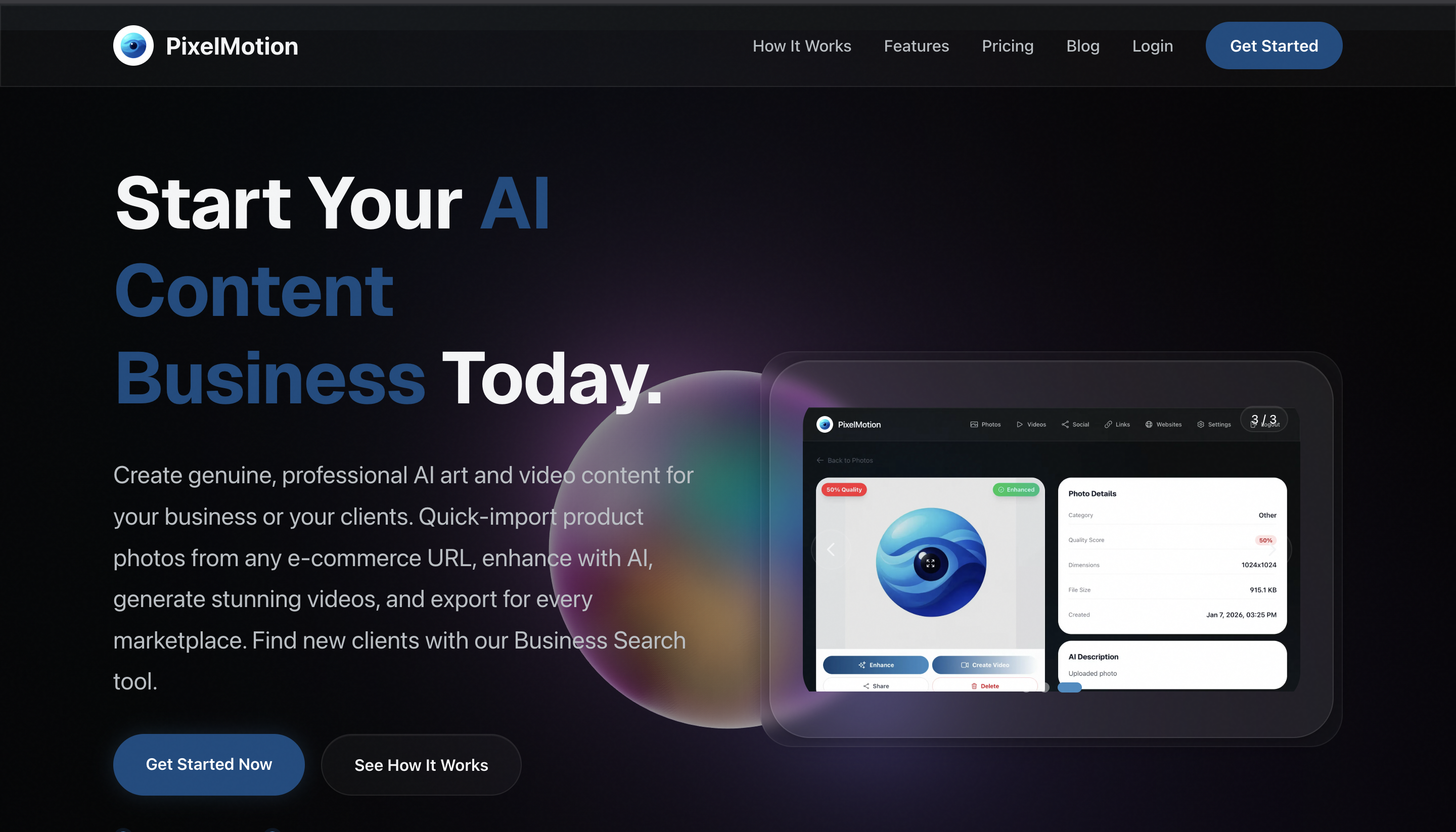
If your Shopify store has product photos but no promotional videos, you can turn those images into short social ads in minutes. This guide shows how to use an AI product video generator for Shopify to prepare images, create a product video, adapt it for TikTok, and publish the finished content.
Prepare your Shopify product images
Start with one to five clear images from your Shopify catalog. Use photos that show the product from useful angles and avoid heavy text, cluttered backgrounds, or low resolution. The deciding factor among AI products is whether they support this exact workflow.
Before generating a video:
- Choose the main product image.
- Confirm that the product is centered and fully visible.
- Remove distracting backgrounds or objects.
- Decide where the video will appear: TikTok, YouTube, or another channel.
- Write one simple message, such as “Lightweight bottle for everyday carry.”
If the original image was taken on a phone, an AI product photo enhancer for Shopify can help improve its starting quality. PixelMotion includes nine AI image enhancement models, so you can refine a basic photo before creating motion.
Create a Shopify product video from images
A Shopify product photo to video AI workflow works best when the prompt gives the model a clear visual direction. In PixelMotion, upload your image, select a video engine, and describe the movement you want.
Follow these steps:
- Upload the enhanced product image.
- Choose a video engine, such as Sora 2, Veo 3.1, or Runway Gen-3.
- Describe the scene and camera movement.
- Select a short duration and vertical format for social media.
- Generate the first version.
- Review the product shape, colors, logo, and key details.
- Regenerate if the product changes or the movement looks unnatural.
Example prompt:
A clean studio shot of a reusable water bottle on a soft neutral surface. Slowly rotate the bottle, add gentle sunlight, keep the label readable, and finish with a close-up of the lid.
This approach lets you create Shopify product videos with AI without arranging a new photo shoot. PixelMotion supports 11 video engines, which gives you options when one engine produces better motion for a particular product.
Adapt the video for TikTok and publishing
For a Shopify product video generator for TikTok, use a vertical 9:16 layout. Keep the product visible near the center because interface elements may cover the edges. Place the main benefit in the opening seconds and avoid adding too much text.
Check these details before publishing:
- The product is recognizable immediately.
- The video has a clear beginning, middle, and end.
- Text is readable on a phone.
- The call to action matches the product page.
- The final file uses a supported format and acceptable file size.
You can use this video creation workflow to produce separate versions for TikTok and YouTube. PixelMotion also supports direct posting to both platforms, allowing you to publish the finished video without downloading and uploading it manually.
For recurring campaigns, keep a folder of approved product images, prompts, brand colors, and calls to action. Reusing these inputs helps automate product video creation for Shopify when you add new products or refresh seasonal content. Publishing consistently can support social commerce content distribution, but monitor actual clicks and sales rather than assuming every video will convert.
Avoid common mistakes and verify the result
Do not use a blurry source image, ask for complex camera movement, or publish the first generation without checking it. AI-generated motion can occasionally distort packaging, text, hands, or product features.
Before publishing, complete this checklist:
- Compare the video with the original Shopify product image.
- Confirm the logo, color, and packaging are accurate.
- Watch it with sound off.
- Check the first three seconds on a mobile screen.
- Open the published post and verify the link or product path.
- Track views, clicks, add-to-cart activity, and sales separately.

