This task can be performed using Free Image Translate
Free AI Image Translate Online - Translate Text in Photos Instantly
Best product for this task

Free Image Translate
productivity
ImageTranslator is an AI-powered image translate tool that translates text within images. It was developed to facilitate seamless multilingual translation and is well-suited for travelers reading foreign signs, students studying multilingual documents, or businesses localizing their visuals.
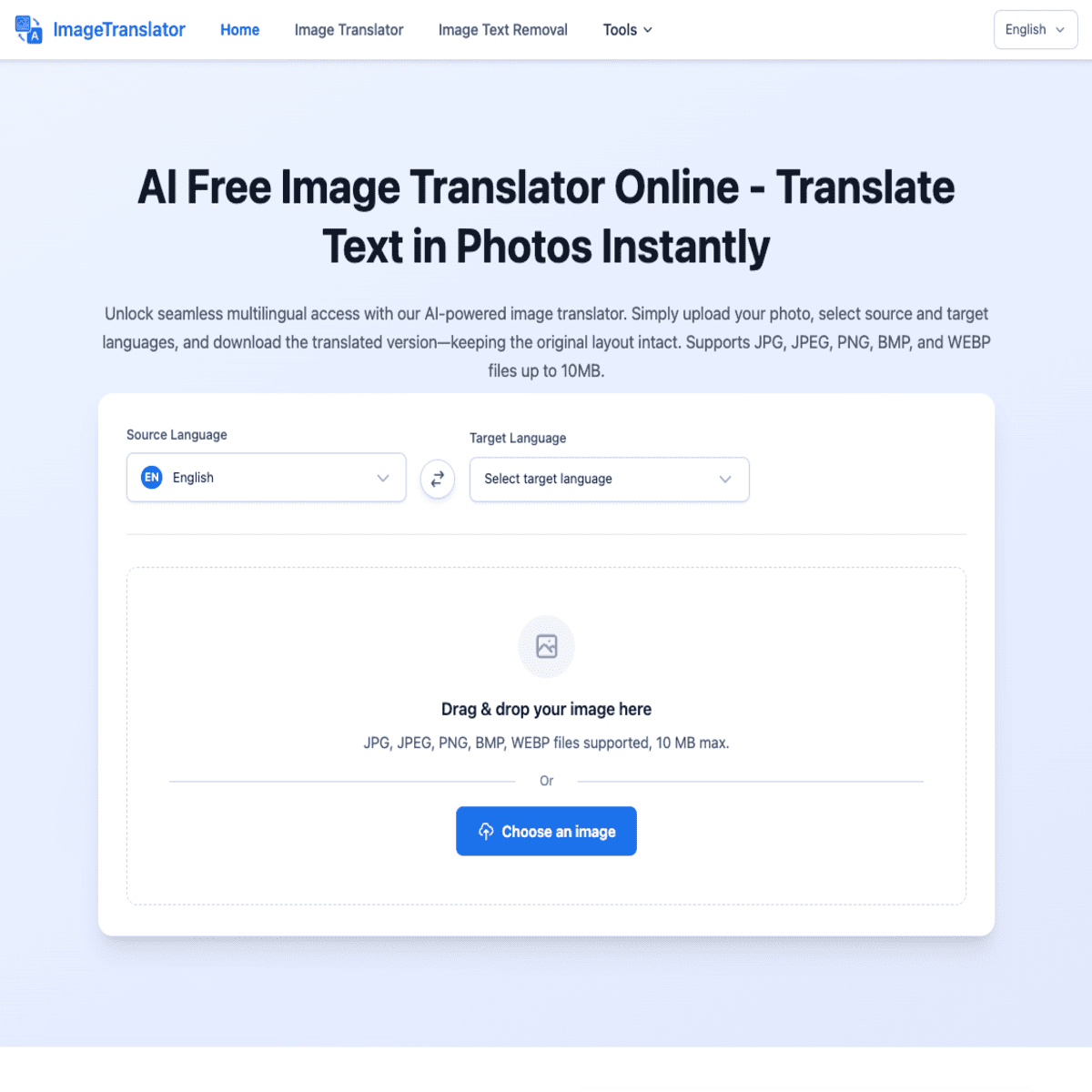
If you have a foreign-language menu, sign, message, or document on your screen, you can translate screenshot text without typing it manually. Upload the image to an AI screenshot translator, choose the languages, review the result, and verify important words before using the translation.
Prepare the screenshot for translation
Start with a clear image. You can use a phone screenshot, a screen capture, or a saved image containing the text.
Before uploading, check these basics:
- Crop out unrelated content when possible.
- Make sure the text is large enough to read.
- Avoid heavy blur, glare, or overlapping graphics.
- Confirm which language appears in the screenshot.
- Decide whether you need the full translated image or only the extracted text.
Clear source images generally give OCR, or image-based text recognition, more useful material to process. This is especially important for small fonts, unusual lettering, and low-contrast text. You can learn more about screenshot translation and image-based text recognition when choosing the right workflow.
Translate a screenshot online in four steps
Use the following process to translate screenshot text online without retyping it.
- Open Free Image Translate. Go to Free Image Translate, an AI-powered image translation tool for text inside photos and screenshots.
- Upload the screenshot. Select the image from your device. Use the original file rather than a compressed copy if both are available.
- Choose the source and target languages. If you are unsure about the source language, select an automatic or detected option when available. Set the target language you can read.
- Start the translation. Let the tool recognize the text and produce the translated result. Depending on the image, you may receive translated text, a translated image, or both.
For example, imagine you are traveling and receive a screenshot of a Japanese restaurant menu. Upload the screenshot, select Japanese as the source and English as the target, then review the translated menu before ordering. This avoids typing each dish name into a separate translator.
If your goal is only to copy the wording, use the extracted text. If you need to share the menu or sign with someone, keep the translated image so the visual context remains available. For another focused workflow, see this guide to translate text in images online for free.
Verify the result before relying on it
An AI screenshot translator can save time, but image quality and context still affect the output. Check the result using this quick review:
- Compare the translated lines with the original image.
- Confirm numbers, dates, prices, names, and addresses character by character.
- Check whether headings, labels, or buttons were missed.
- Look for text hidden by icons, shadows, or decorative backgrounds.
- Consider whether a phrase could have multiple meanings.
For a travel sign, verify directions and warnings carefully. For a business screenshot, compare product names and legal wording with the source before publishing. A second pass with a clearer crop can help when the first scan seems incomplete. It is useful to treat a rescan as an evaluated signal, not proof that the translation is perfect.
You can also browse visual translation products if your task involves repeated image-based translation, and compare it with other tools in the broader productivity category.
Common mistakes and quick fixes
The tool misses small text: Crop the screenshot and upload a higher-resolution version.
The translation contains strange words: Check the detected source language and rescan the affected area separately.
The layout is confusing: Use the original screenshot beside the translated result and match each line or label.
A critical detail looks uncertain: Do not guess. Enlarge the image, verify the original characters, and ask a qualified human when accuracy has serious consequences.
More topics related to Free Image Translate
Similar topics
- Free Image Translator Alternatives for Translating Screenshots Online
- How to translate text in images without losing formatting?
- How to translate foreign signs from phone photos for free online?
- How to fix inaccurate AI translations in scanned images?
- Translate Scanned Documents Online with an AI Image Translator

