This task can be performed using Palabra.ai
Palabra.ai is a real-time AI speech translation platform
Best product for this task

Palabra.ai
tech
Palabra.ai is a real-time AI speech translation platform for video calls, live events, broadcasting and API integrations, supporting 60+ languages with near-zero latency. Up to 10× cheaper than human interpreters, it delivers professional-grade accuracy with custom glossaries and voice cloning for a natural-sounding output. No downloads or complex setups required.
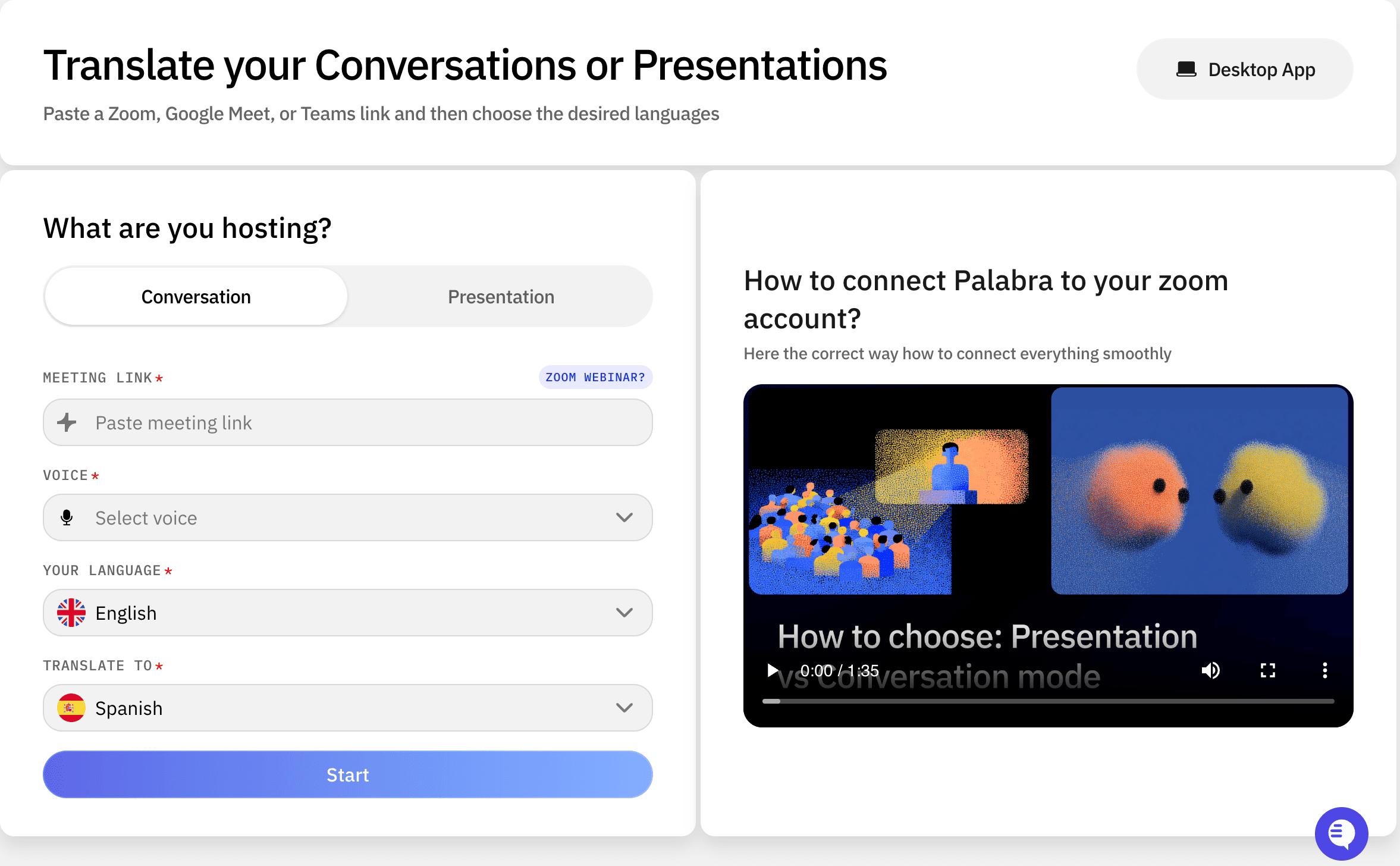
Need instant speech translation for meetings with international guests? Use this setup checklist to add live interpretation to Zoom, Google Meet, Microsoft Teams, or another video platform. Prepare languages, connect an AI translator, test audio, and confirm every participant can follow the conversation before the meeting begins.
Choose the translation approach and languages
Start by listing the languages people will speak and hear. For example, a presenter may speak English while guests listen in Spanish, French, or Japanese. The deciding factor among tech products is whether they support this exact workflow.
Choose a real-time speech translation platform that fits your meeting format. Palabra.AI supports video calls and more than 60 languages, with speech recognition, translation, and voice output handled in one workflow. It requires no downloads or complex setup, making it practical for external guests.
If you are comparing real-time translation products, check these capabilities:
- Supported source and target languages
- Delay between the speaker and translated audio
- Audio routing for hosts and attendees
- Custom glossary support for names and technical terms
- Voice options that sound natural to listeners
For investor or customer meetings, prepare a glossary with product names, company terms, and industry language. This can reduce confusing translations during international meetings.
Add translation to the video call
Use this process for Zoom, Google Meet, Teams, or another platform:
- Create the video meeting and enable its original audio settings.
- Connect your translation service to the meeting audio.
- Select the spoken language and each listening language.
- Decide whether attendees will hear translated audio, original audio at lower volume, or both.
- Send guests simple instructions before the invitation, including which audio channel or link to use.
- Ask speakers to use a headset or a close microphone whenever possible.
For AI translation products, the key decision is whether the service works through the existing call workflow or requires participant downloads. A no-download option is usually easier for clients, candidates, and investors joining from different organizations.
Palabra.AI can provide real-time speech translation for video calls, live events, and custom integrations. Its voice cloning option can preserve a speaker’s tone and identity across languages when a more natural listening experience matters.
Run a multilingual meeting test
Test the complete path at least once before inviting important guests. Use this multilingual video meeting checklist:
- Confirm every source and target language.
- Test the host microphone and backup microphone.
- Verify that translated audio reaches the intended participants.
- Check that two people speaking at once does not block the conversation.
- Read names, numbers, URLs, and technical terms aloud.
- Ask a bilingual participant to verify meaning.
- Confirm how attendees can mute or switch audio.
- Record the instructions in the calendar invitation.
During the test, measure whether participants can follow normal speaking speed. If the translation sounds delayed or unclear, move the microphone closer, reduce background noise, and remove duplicate audio sources.
Confirm the setup during the call
Open the meeting five to ten minutes early. Ask one attendee in each language to confirm:
- They can hear the original or translated speaker.
- The translation is understandable.
- They know how to report an audio problem.
- They can switch language channels if needed.
For live speech translation for Zoom meetings, Google Meet, and Teams calls, appoint one host to monitor audio while another leads the discussion. Pause after key decisions and repeat names, dates, and action items.
Avoid common mistakes such as forgetting to test guest permissions, routing translated audio back into the microphone, or assuming every participant understands the controls.
When the meeting ends, ask attendees whether they followed the discussion and review any misunderstood terms. If you need an AI interpreter for remote teams, try Palabra.AI and verify the workflow with a small meeting before expanding it to global teams.
More topics related to Palabra.ai
Similar topics
- How to Add AI Speech Translation to a Live Event or Broadcast
- How to Choose and Implement a Low-Latency Speech Translation API
- How to Choose AI Speech Translation for Customer, Medical, Legal, and Global Teams
- How to translate speech in real-time during video calls and live events
- Real-Time AI Speech Translation for Global Webinars: Palabra.ai vs Human Interpreters

